
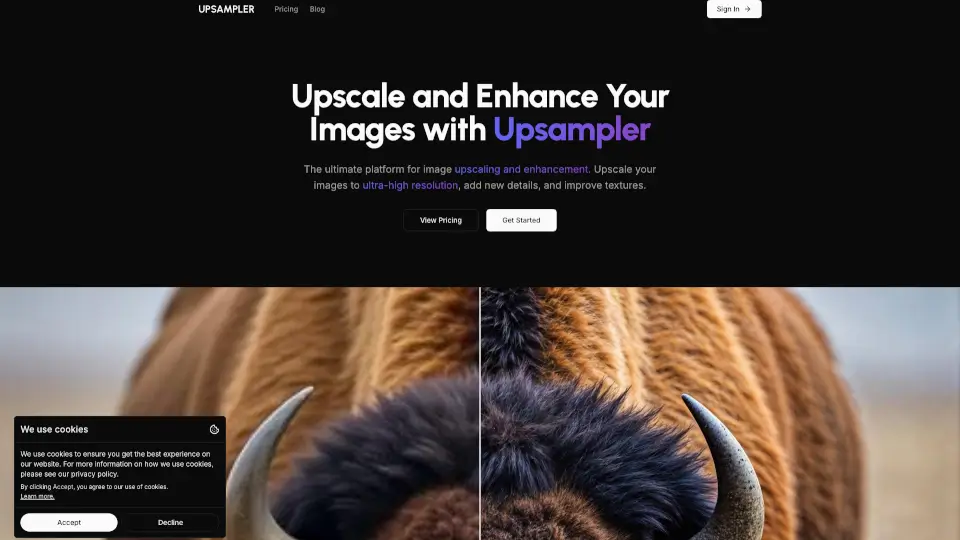
What is Upsampler?
Upsampler is the all-in-one platform that gives you access to the world's best AI models for generating, upscaling, and editing images and videos. Whether you're creating visuals from scratch, enhancing low-resolution photos, or turning images into stunning videos, everything runs in your browser. No downloads, no installs—just pick your model, upload your content, and get professional-quality results in minutes.
What are the features of Upsampler?
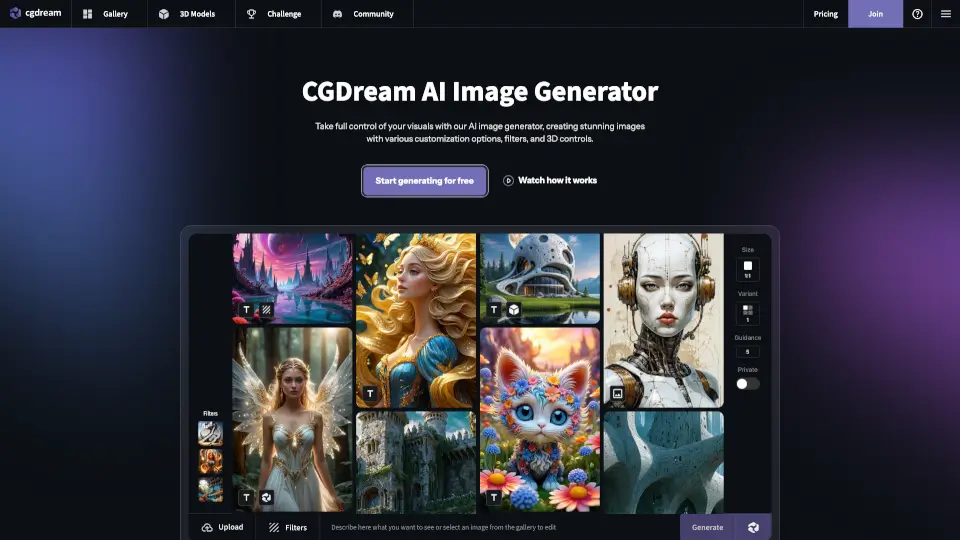
- Image Generation: Create brand-new images from text prompts and reference images using 43 different AI models, including Nano Banana, Imagen 3, and Imagen 4.
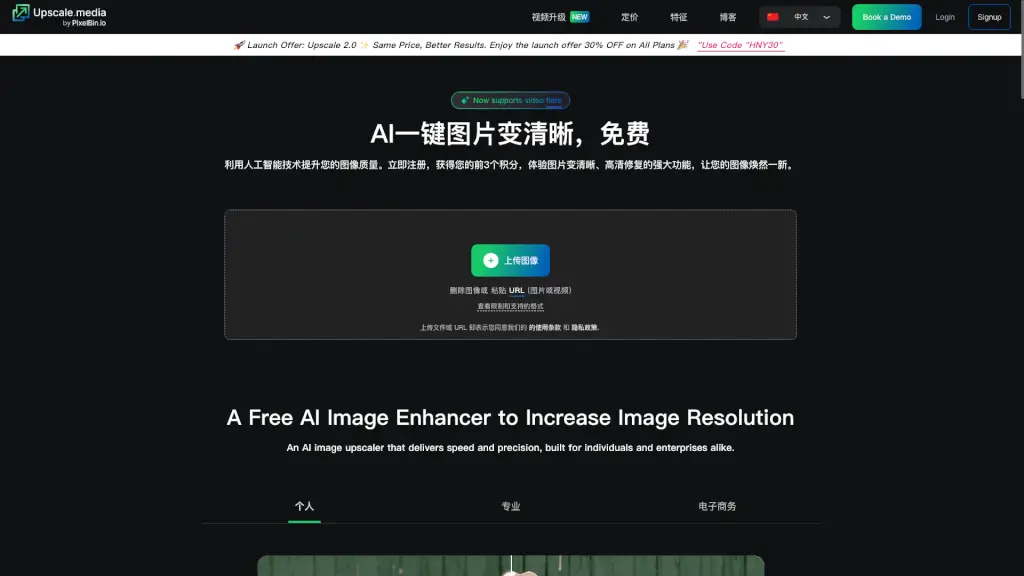
- Creative Upscale: Regenerate images at higher resolution with intelligent detailing. Perfect for making AI-generated images more realistic, especially with tricky elements like text, hands, and intricate patterns.
- Precise Upscale: Sharpen and upscale images while faithfully preserving original content. Great for real photos, manga, and anime where accuracy matters most.
- Image Editing: Edit images at full resolution using text prompts and optional masking. Remove imperfections, add elements, or refine details without quality loss.
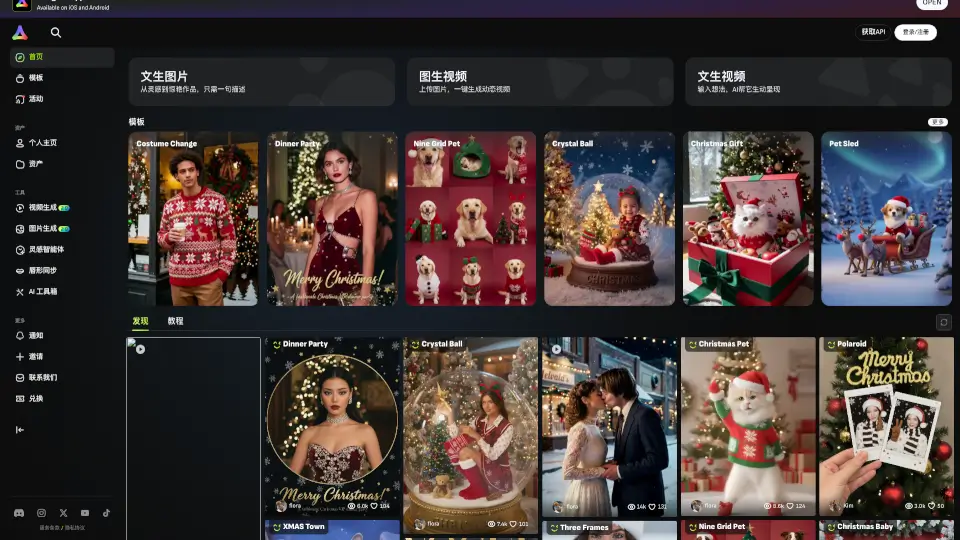
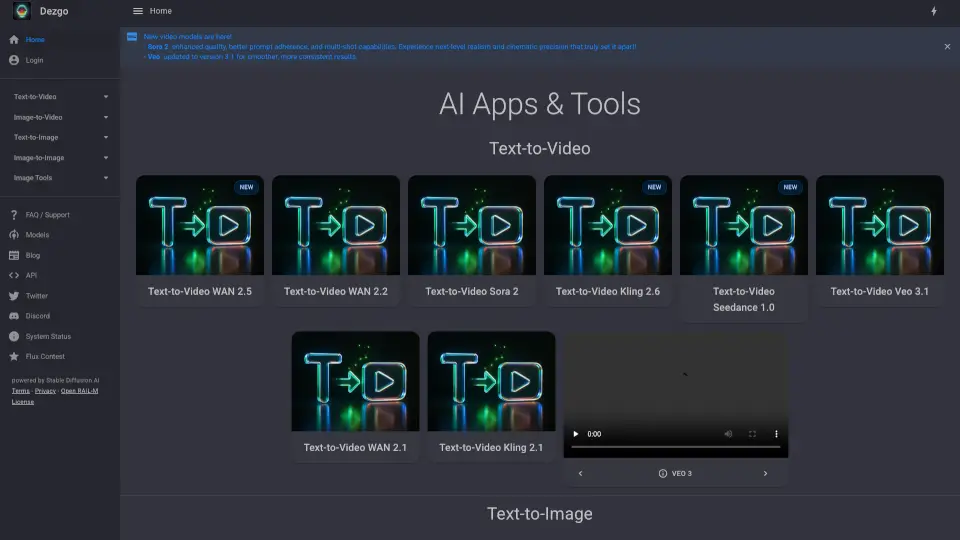
- Video Generation: Turn text prompts or existing images into videos using advanced AI models like Wan 2.2 and Happy Horse.
- Video Upscaling: Boost video resolution up to crisp 4K with frame-by-frame super-resolution that keeps motion stable and textures sharp.
What are the use cases of Upsampler?
- Realistic Portraits: Enhance AI-generated portraits with Creative Upscale for better skin texture, realistic features, and fine detail.
- Architecture & Interior Design: Bring architectural renders and interior concepts to life with added detail and realism.
- Anime & Illustrations: Add sharpness, new details, and vibrant colors to digital artwork without altering the original composition.
- Game Assets: Upscale game graphics to improve sharpness and add intricate details for a more polished look.
- Text-Heavy Images: Use Precise Upscale on images containing text to preserve symbol legibility and avoid distortion.
How to use Upsampler?
- Start creating: Click "Get Started" and choose your task—generate, upscale, edit, or create video.
- Select your model: Browse the available AI models to find the best fit for your project (e.g., Stable Diffusion for illustrations, Flux for realism).
- Upload or describe: Either upload a file or type a text prompt describing what you want to create or change.
- Adjust settings: For upscaling, decide between Creative Upscale (adds new detail) or Precise Upscale (preserves original content).
- Process and download: Hit the button, wait for processing, and download your final high-resolution image or video.