What is Wave Terminal?
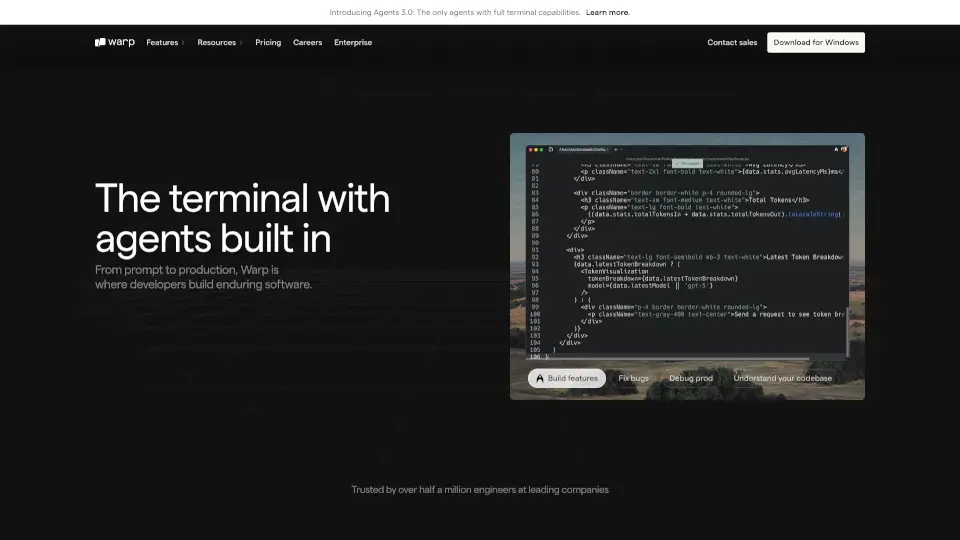
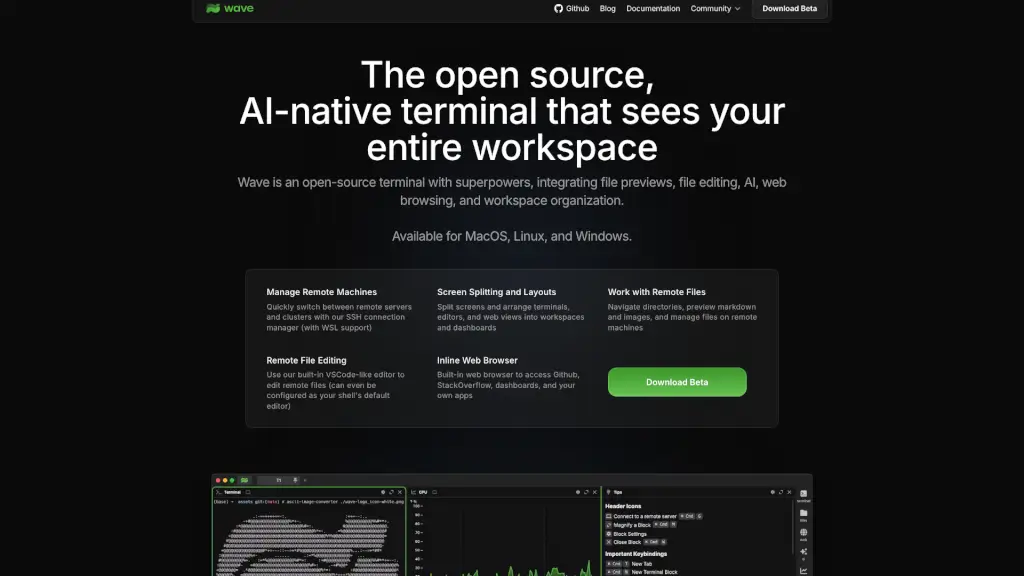
Tired of constantly switching between your terminal, file explorer, browser, and code editor? Meet Wave Terminal—an open-source, AI-native terminal that brings everything you need right into your command line. Designed for developers, sysadmins, and power users, Wave eliminates context switching by integrating file previews, remote editing, web browsing, and workspace dashboards—all in one sleek interface.
Available for macOS, Linux, and Windows, Wave works seamlessly with local and remote environments, including SSH servers and WSL. Whether you're debugging a script, reviewing Markdown docs, or monitoring a live dashboard, Wave keeps your workflow fluid and focused—no more alt-tab chaos.
What are the features of Wave Terminal?
- Inline File Previews: Instantly preview images, Markdown, CSVs, HTML, audio, and video directly in your terminal—no external apps needed.
- Remote File Editing: Edit files on remote machines using a built-in VSCode-like editor with syntax highlighting, mouse support, and full copy/paste functionality.
- Built-in Web Browser: Access GitHub, Stack Overflow, internal dashboards, or any web app without leaving your terminal.
- SSH Connection Manager: Quickly switch between remote servers and clusters, with full support for WSL on Windows.
- Custom Dashboards & Widgets: Build interactive workspaces using graphical widgets powered by HTML and CLI data—then share them with your team.
- Screen Splitting & Layouts: Arrange terminals, editors, and web views into custom layouts tailored to your workflow.
- 100% Open Source & Local-First: All your data stays on your machine—no accounts, logins, or cloud tracking required.
What are the use cases of Wave Terminal?
- Debugging a production issue while simultaneously viewing logs, editing config files on a remote server, and checking a monitoring dashboard—all in one window.
- Writing documentation in Markdown and previewing it instantly without switching to a separate viewer.
- Managing multiple cloud servers via SSH while editing deployment scripts and referencing a GitHub PR in the built-in browser.
- Creating a real-time DevOps dashboard that pulls metrics from CLI tools and displays them with custom HTML widgets.
- Collaborating with teammates by sharing pre-built dashboard layouts for common tasks like CI/CD monitoring or database health checks.
- Learning a new tool by reading its docs in the inline browser while testing commands in a split terminal pane.
How to use Wave Terminal?
- Download Wave Terminal for your OS (Mac, Linux, or Windows) from the official site—no signup required.
- Launch Wave and connect to remote servers using the SSH manager (supports key-based auth and WSL).
- Use Cmd/Ctrl + ` to toggle file previews for supported formats like images or Markdown.
- Press Cmd/Ctrl + E to open the built-in editor for any file—local or remote—with full GUI editing features.
- Create a new dashboard by dragging terminals, editors, or web views into a layout, then save it as a reusable workspace.
- Build custom widgets using simple HTML and pipe CLI output into them—for example,
df -h | wave-widget disk-usage.