
What is OneCal?
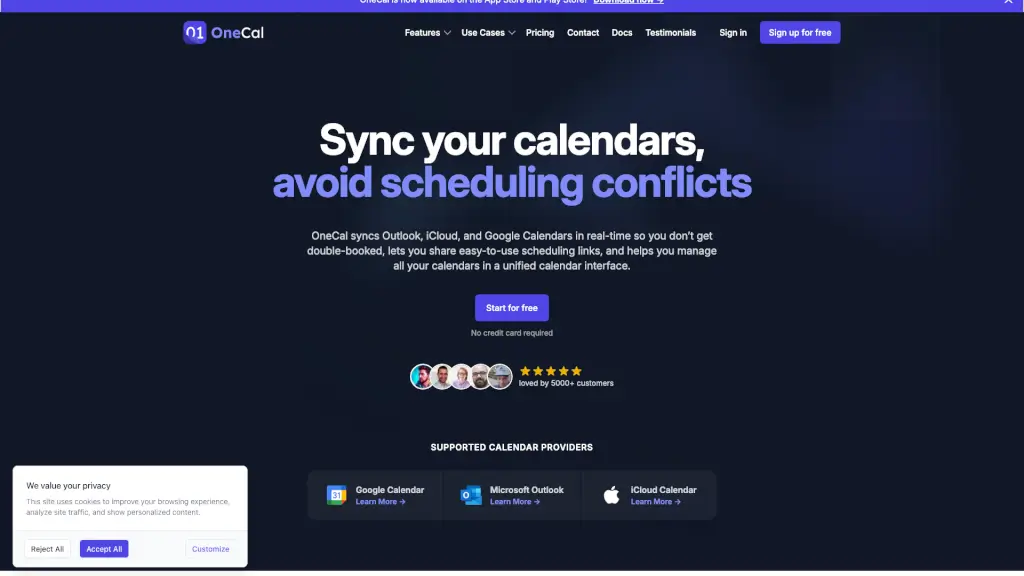
Juggling multiple calendars from Google, Outlook, and iCloud can be a scheduling nightmare—double bookings, missed meetings, and constant manual updates. OneCal solves this by syncing all your calendars in real time, so everything stays up to date automatically across platforms. Whether you're managing work, personal life, or client appointments, OneCal keeps your schedule unified and conflict-free.
With OneCal, you get more than just syncing: share easy booking links, control what details appear on each calendar for privacy, and manage everything from one clean, mobile-friendly interface. Trusted by over 5,000 professionals—from freelancers to executives—it’s the simple way to bring order to calendar chaos without compromising security.
What are the features of OneCal?
- Real-Time Multi-Way Calendar SyncInstantly sync events between Google Calendar, Outlook, and iCloud—changes reflect across all connected calendars as they happen (iCloud updates may take up to 10 minutes).
- Privacy-Focused Sync ControlsChoose exactly what info syncs—hide event titles, limit details, or exclude certain events—so your work calendar stays professional while your personal one stays private.
- Custom Scheduling LinksCreate individual or team booking links in minutes, letting others schedule time with you without back-and-forth emails.
- Unified Calendar ViewManage all your calendars in one place—create, edit, RSVP, or join meetings from a single, intuitive interface on web or mobile.
- Zero Data Storage PolicyOneCal never stores, analyzes, or sells your calendar data. Events are synced securely via OAuth2, and only minimal necessary permissions are requested.
- Team & Multi-Organization SupportSync calendars across different companies or Gmail accounts, and upgrade to team plans for organization-wide coordination.
What are the use cases of OneCal?
- A freelancer using both a personal Google Calendar and a client-facing Outlook account avoids double-booking by syncing both in real time.
- An executive assistant manages a CEO’s iCloud (personal) and Outlook (work) calendars through one view, sharing availability via branded booking links.
- A small business owner with five Gmail calendars uses OneCal to sync them all and creates separate scheduling links for consultations, team meetings, and client onboarding.
- A remote worker across time zones ensures family events (on iCloud) don’t clash with work meetings (on Google Workspace) thanks to automatic, real-time syncing.
- A consultant shares a collective team scheduling link so clients can book time with any available team member without internal coordination.
- A photographer syncs personal, studio, and client project calendars to maintain clear availability while keeping sensitive event details private.
How to use OneCal?
- Sign up for free at OneCal (no credit card needed) and connect your Google, Outlook, or iCloud accounts using secure OAuth2 login.
- Select which calendars you want to sync and choose sync direction (one-way or multi-way) along with privacy settings (e.g., hide titles).
- Create personalized scheduling links for yourself or your team, customize them with logos or availability rules, and share via email or website.
- Use the unified web or mobile app (available on iOS and Android) to view, edit, or join events across all synced calendars in one place.
- Revoke access anytime through your account settings—OneCal never stores passwords or full event data.