What is Image Enhancer?
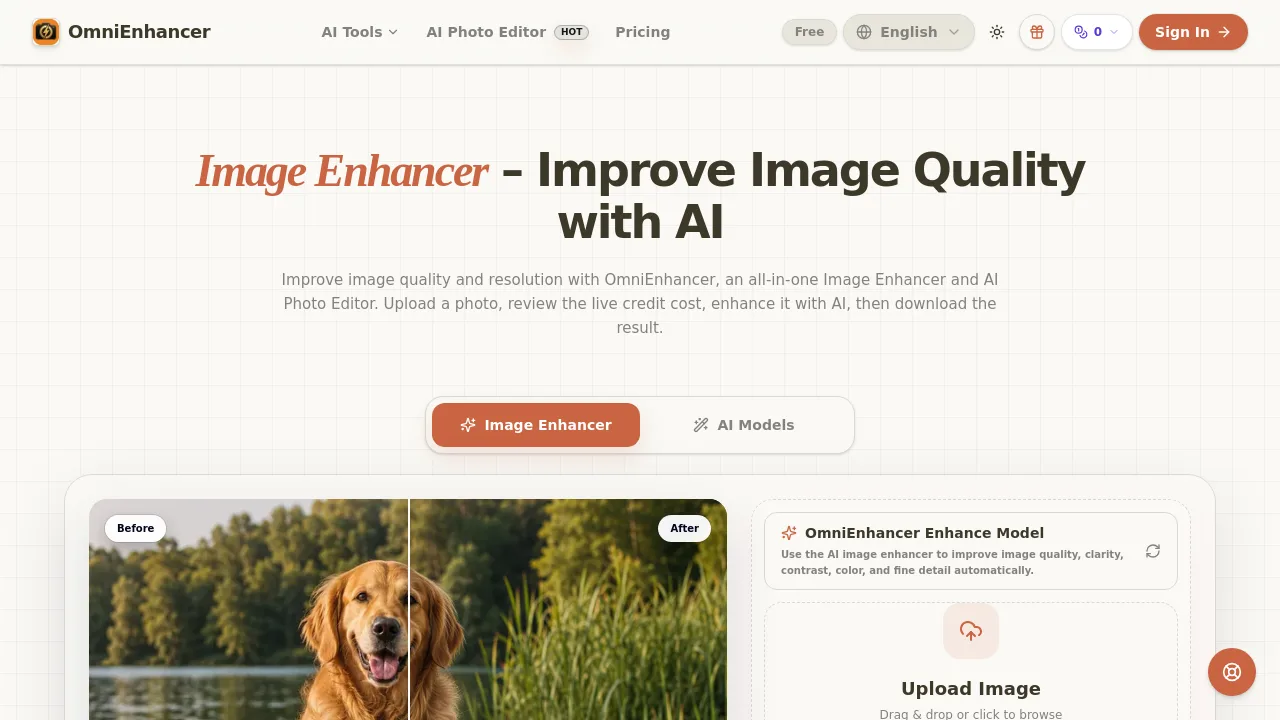
OmniEnhancer's Image Enhancer is an AI-powered tool for improving clarity, resolution, and color in photos. It targets anyone dealing with blurry, low-resolution, or compressed images — from social media creators and e-commerce sellers to real estate agents and family archivists. The tool works in a browser with no software install, accepts JPG, PNG, and WebP, and offers a free daily guest credit. It fits best as a first-step quality fix before moving to creative edits like background removal or object cleanup.
What are the features of Image Enhancer?
- AI Enhance & Upscale: Automatically sharpens details, reduces mild blur and noise, balances contrast and color, and upscales images up to 2× standard resolution.
- Face Restore: Recovers facial detail and natural texture in portraits, keeping skin and expressions believable for profile photos, team pages, or social posts.
- Old Photo Restoration: Restores clarity, contrast, and resolution in scanned family photos while preserving the untouched original for comparison.
- Colorize B&W: Adds realistic color to black-and-white images, useful for archive photos and historical visuals.
- Low-Light Enhance: Lifts underexposed images by improving visible detail and color balance without introducing unnatural grain.
- Before/After Comparison: Lets you review the enhanced result side by side with the original before downloading, helping you verify detail in faces, text, and product labels.
What are the use cases of Image Enhancer?
- E-commerce sellers: Clarify product photos by sharpening materials, labels, and edges to make storefronts more shoppable.
- Social media creators: Remove compression artifacts and recover crisp detail in posts, tutorials, and thumbnails for cleaner feeds.
- Real estate agents: Improve light, color, and visible room detail in property listings to make spaces feel inviting without altering reality.
- Family archivists: Enhance contrast and resolution in old scanned photos before restoring, colorizing, or exporting higher-resolution copies.
- Screenshot users: Reduce noise and improve legibility in screenshots, documents, and instructional visuals while preserving original layout.
How to use Image Enhancer?
- Upload your image: Click or drag a JPG, PNG, or WebP file into the upload area. The tool checks your benefits and shows the live credit cost.
- Choose an enhancement mode: Select from Enhance, Upscale, Face Restore, Old Photo Restore, Colorize, or Low-Light Enhance based on the visible problem.
- Generate and compare: Click “Enhance” to process the image. Use the before/after slider to inspect faces, text, and product details before downloading.
- Download the result: Save the enhanced file as JPG, PNG, or WebP. For best quality, start with the least compressed source image you have.