What is Enhancer App?
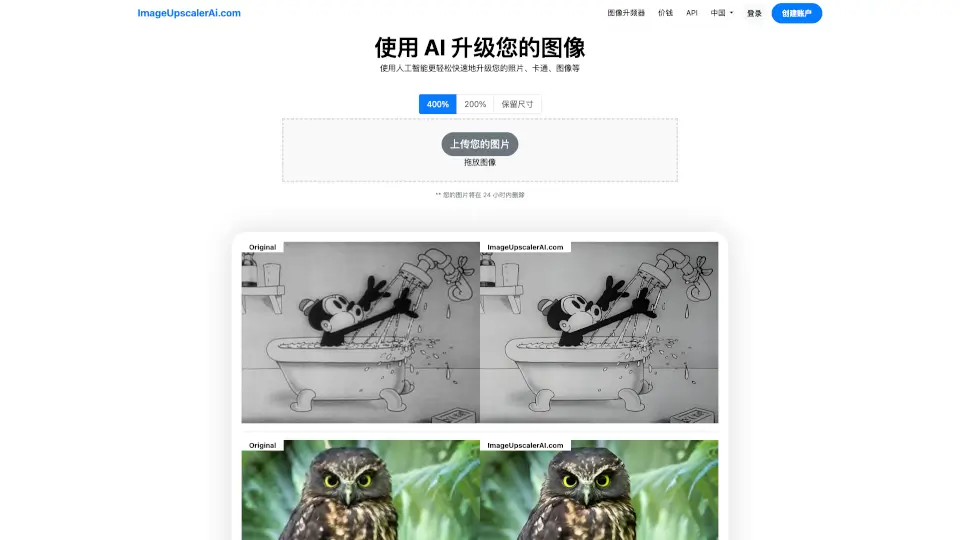
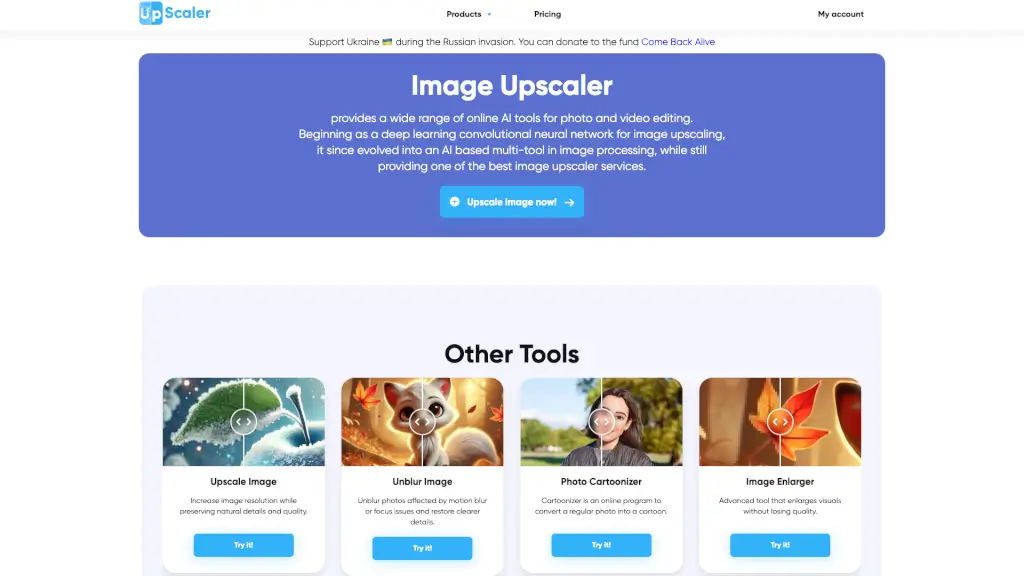
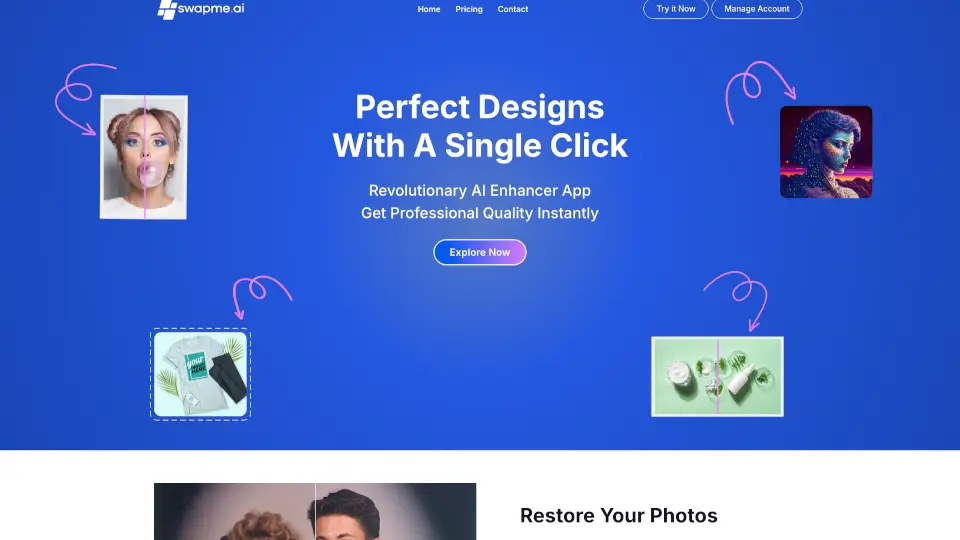
Enhancer App is an AI-powered image enhancement and upscaling tool designed for Canva users who need to improve the quality of photos, designs, and product images. It can upscale images by up to 1000% in one click, reduce grain and pixelation, and restore old or blurry photos. Used by over 500,000 people, it won the Canva Community Award for Best App. Ideal for e-commerce sellers, social media creators, and print-on-demand designers looking for professional-quality visuals without manual editing.
What are the features of Enhancer App?
- One-Click AI Upscaling: Increases image resolution by up to 1000% while preserving detail, ideal for printing or large-format designs.
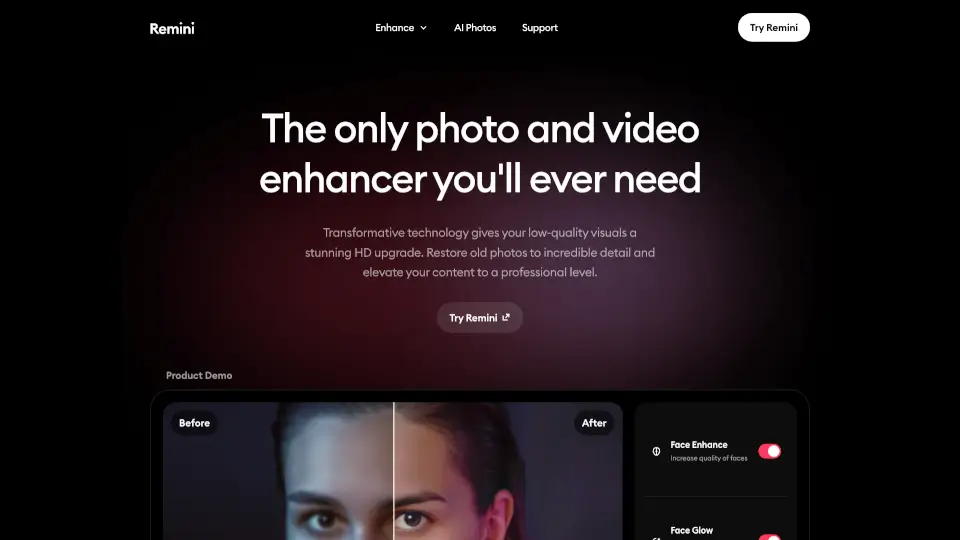
- Photo Restoration: Removes blur, grain, and damage from old or low-quality photos, restoring sharpness and clarity.
- E-commerce Product Enhancement: Improves the quality and appeal of product photos, helping increase customer confidence and sales.
- Social Media Content Polish: Boosts the sharpness and overall look of Instagram posts, Facebook banners, and other social visuals.
- Canva Integration: Works directly inside Canva’s editor, so users can enhance images without leaving their design workflow.
What are the use cases of Enhancer App?
- E-commerce sellers – Enhance product photos to make them clearer and more attractive, improving conversion rates.
- Social media managers – Upscale and sharpen images for Instagram, Facebook, and other platforms to increase engagement.
- Print-on-demand designers – Improve resolution of artwork and logos for high-quality printing on merchandise.
- Photographers and hobbyists – Restore old, blurry, or damaged family photos to preserve memories with better clarity.
- Canva design creators – Instantly improve details in illustrations, icons, AI-generated content, and logos for a professional finish.
How to use Enhancer App?
- Open the Enhancer App from the Canva editor’s apps menu or visit the product website.
- Upload the image you want to enhance – supports photos, artwork, logos, and AI-generated content.
- Click the Enhance or Upscale button to apply AI processing in one click.
- Preview the result and adjust settings if available; then save or download the improved image.
- For best results, start with a reasonably clear source image; the app works best for reducing grain and pixelation.