
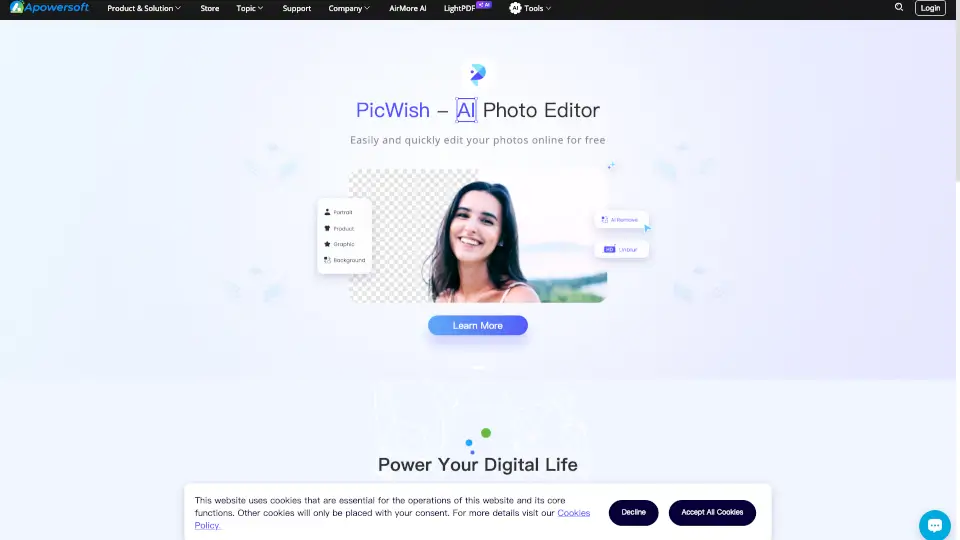
What is Apowersoft?
Think of Apowersoft Unlimited as your all-in-one digital toolkit for work and play. Instead of hunting down a dozen different apps, this one subscription gives you everything you need to record your screen, edit videos, convert files, manage your phone, fix PDFs, and even recover lost data. It's designed for anyone who wants to get things done without the headache of complicated software, whether you're a student making a presentation, a business professional creating training videos, or just someone who loves tinkering with media.
What are the features of Apowersoft?
- All-in-One Installer: One simple download gives you access to the entire suite of Apowersoft tools—no need to install each one separately.
- Screen Recorder (ApowerREC): Capture your computer screen, webcam, and audio simultaneously. Perfect for making tutorials, recording webinars, or saving a live stream.
- Video & Audio Converter: Convert any video or audio file to almost any format you need, including MP4, AVI, MP3, and more.
- Phone Mirroring (ApowerMirror): Mirror your Android or iPhone screen directly onto your PC in real-time. Great for app demos, gaming on a bigger screen, or presentations.
- PDF Editor & Converter: Edit text and images in PDFs, convert PDFs to Word or Excel, and compress them for easier sharing.
- Data Recovery (ApowerRescue): A safety net for your iPhone or iPad, helping you recover lost photos, messages, contacts, and other data.
- Utility Tools: Includes a GIF Maker, Background Eraser, HEIC Converter, and many more handy tools for daily tasks.
What are the use cases of Apowersoft?
- Creating a Step-by-Step Tutorial: Use ApowerREC to record your screen and voice as you walk someone through a software or process. Then, trim the video with the built-in editor.
- Getting a Presentation Ready: Use the PDF Editor to merge documents, then convert a PDF into a PowerPoint. Finally, mirror your phone to show a live app demo without huddling around a tiny screen.
- Freeing Up Phone Space: Use the Phone Manager to back up all your photos and videos to your computer, then use ApowerRescue if you accidentally delete something important.
- Editing a Home Video: Import your raw footage from your phone or camera, use the Video Editor to cut out the boring parts and add background music, then convert it to a smaller MP4 file to share with family.
- Managing Work Documents: Compress a large PDF so it fits in an email, or use the OCR feature to extract text from a scanned document image.
How to use Apowersoft?
- Get Started: Download and install Apowersoft Unlimited from the official website. The one-click installer will set up the main hub.
- Launch a Tool: Open the main dashboard and simply click on the tool you need—like "Screen Recorder" or "Video Converter."
- Follow the Prompts: Each tool has a clean, user-friendly interface. For example, in the screen recorder, just hit the big red "REC" button to start.
- Manage Your Files: After you finish, files are usually saved to a default folder, but you can easily change the output path in the settings of each tool.
- Switch Tools Seamlessly: When you finish one task, just go back to the main dashboard and click a different tool. There's no need to close and reopen separate programs.