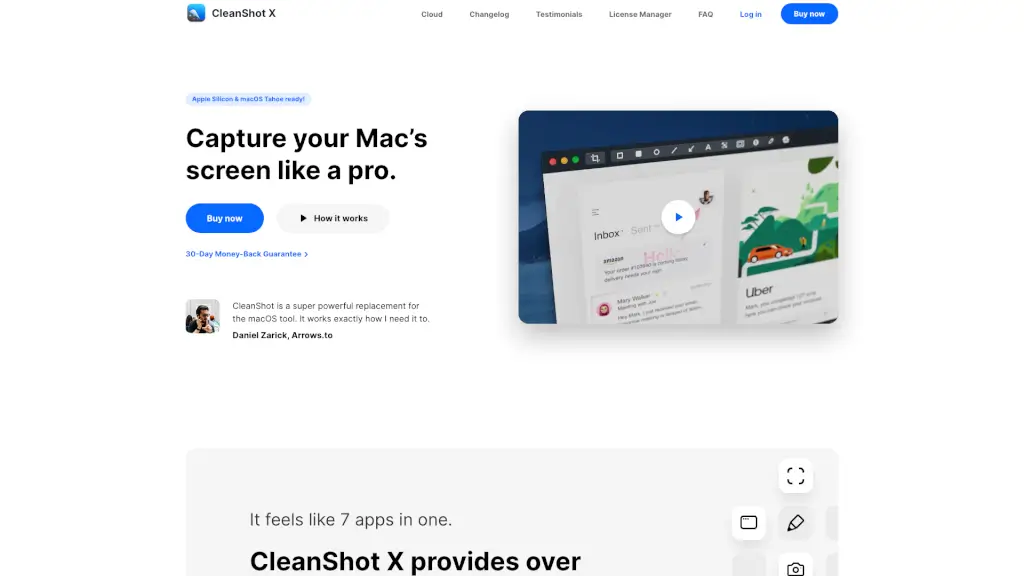
Что такое CleanShot X?
CleanShot X — это мощное приложение для создания скриншотов и записи экрана на Mac, которое заменяет стандартные инструменты macOS гораздо более удобными и функциональными. С ним вы легко делаете снимки экрана, записываете видео или GIF, добавляете пометки и мгновенно делитесь результатами — всё в одном окне.
Благодаря продуманному интерфейсу и десяткам полезных функций, CleanShot X идеально подходит как для повседневных задач, так и для профессиональной работы: от быстрой отправки бага разработчикам до создания контента для соцсетей. Приложение полностью оптимизировано под Apple Silicon и работает безупречно даже на последних версиях macOS.
Какие особенности у CleanShot X?
- Прокручиваемый захват: Делайте скриншоты длинных веб-страниц, чатов или кода целиком — даже если они не помещаются на экране.
- Встроенные аннотации: Выделяйте важные детали стрелками, текстом, фигурами и размытием — прямо после снимка.
- Запись экрана с веб-камерой и звуком: Записывайте не только действия на экране, но и себя через камеру, микрофон и системный звук.
- Облачный обмен (CleanShot Cloud): Получайте ссылку на скриншот или запись одним кликом — без регистрации можно использовать базовые функции.
- Фон и стилизация: Добавляйте красивые фоны, убирайте иконки рабочего стола и настраивайте внешний вид скриншотов за секунды.
- Распознавание текста (OCR): Копируйте текст из изображений или PDF — быстро и локально, без отправки данных в облако.
Какие случаи использования CleanShot X?
- Быстро сообщить коллеге о баге в интерфейсе с пометками и GIF-демонстрацией.
- Создать привлекательный пост для Instagram или Twitter с чистым скриншотом и стильным фоном.
- Сохранить всю переписку из мессенджера или длинную статью одним прокручиваемым скриншотом.
- Записать короткий обучающий ролик с веб-камерой и выделением кликов мыши.
- Подготовить презентацию, используя скриншоты без иконок и с единым фоном.
- Извлечь текст из сканированного документа или изображения без сторонних сервисов.
Как использовать CleanShot X?
- Нажмите сочетание клавиш (по умолчанию Cmd+Shift+5) — откроется панель CleanShot X.
- Выберите тип захвата: область, окно, весь экран, прокрутка или запись.
- После снимка сразу используйте панель аннотаций для выделения деталей.
- Перетащите скриншот в Slack, Gmail или Figma — или нажмите «Копировать» для быстрой вставки.
- Включите опцию «Скрыть иконки рабочего стола» перед захватом для чистого фона.
- Используйте самоуничтожающийся таймер (Self-timer), чтобы успеть подготовиться к идеальному кадру.