
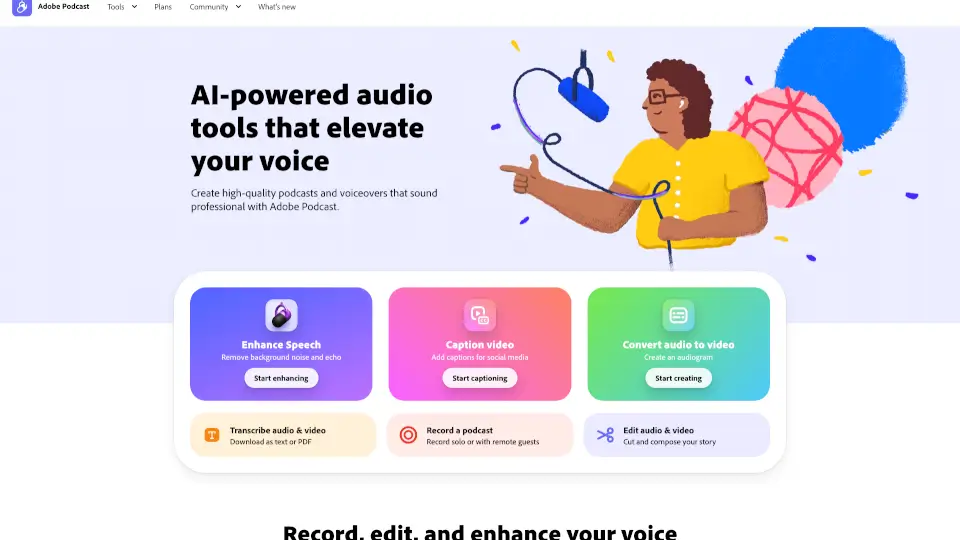
What is Adobe Podcast?
Adobe Podcast is a free, browser-based platform that uses AI-powered tools to help anyone create professional-sounding audio—no fancy gear or editing experience needed. Whether you're recording a solo voiceover, interviewing remote guests, or cleaning up a lecture, Adobe Podcast handles the heavy lifting so your voice comes through crisp and clear.
The best part? Everything happens right in your web browser—no downloads, no complicated software. From noise removal to automatic transcription and one-click enhancement, Adobe Podcast turns raw recordings into polished content ready for podcasts, social media, or class projects.
What are the features of Adobe Podcast?
- Enhance Speech: Instantly removes background noise, echo, and room reverb—even if you recorded on a phone or laptop mic.
- Studio BETA: Record, edit, and enhance audio or video directly in your browser with multitrack support and individual speaker tracks.
- AI Transcription: Automatically transcribes speech with high accuracy (same tech used in Adobe Premiere Pro), letting you edit audio by editing text.
- Video Support: Works with MP4, MOV, and other common video formats—add captions, remove music, or extract clean voice audio.
- Bulk Enhancement: Upload multiple files at once and enhance up to 4 hours of audio per day (with Premium).
- Royalty-Free Music: Access podcast-ready intros, outros, and background tracks you can use without copyright worries.
- Custom Audiograms: Turn audio clips into shareable videos with captions, themes, and custom backgrounds using Adobe Express integration.
What are the use cases of Adobe Podcast?
- Record a true crime podcast with remote co-hosts and automatically separate each speaker’s audio.
- Clean up a class lecture recorded in a noisy room and generate a transcript for students.
- Create an audio newsletter with professional sound quality using just your laptop microphone.
- Add captions to social media videos for better accessibility and engagement.
- Remove background music from a video interview to isolate the speaker’s voice.
- Convert a voice memo into a captioned video clip for Instagram or TikTok using audiogram tools.
How to use Adobe Podcast?
- Go to podcast.adobe.com and sign in with your Adobe ID (free account works).
- Click “Record a podcast” to start a new session solo or invite remote guests via link.
- After recording or uploading a file, click “Enhance Speech” to instantly improve audio quality.
- Use the transcript editor to cut, paste, or delete sections of audio just like text.
- For videos, use “Remove music” or “Caption video” to quickly prep content for social platforms.
- Upgrade to Premium for longer enhancements, larger file support (up to 1 GB), and unlimited Studio project downloads.