What is Animaker’s Subtitle Generator?
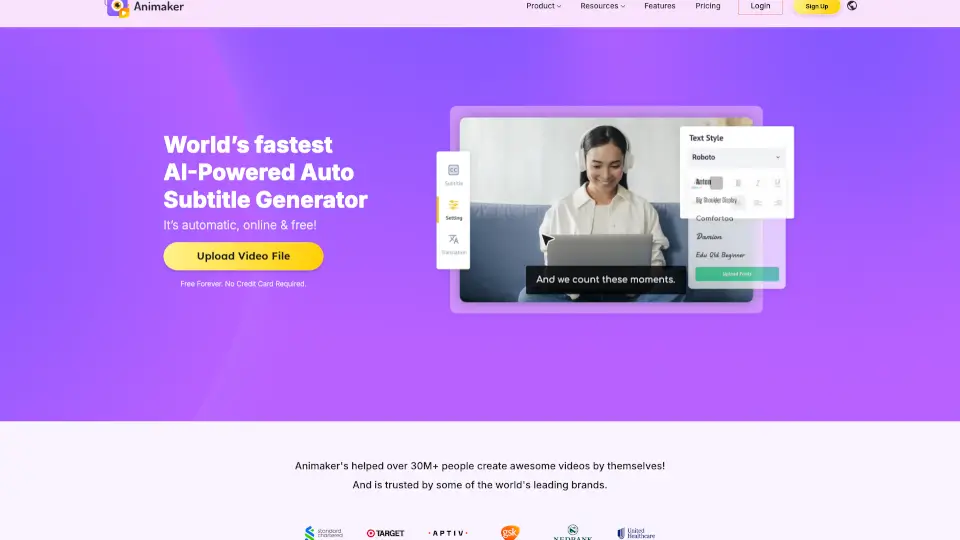
Looking to make your videos more engaging, accessible, and shareable? Animaker’s AI-powered Auto Subtitle Generator does the heavy lifting for you—fast, free, and in over 100 languages. Whether you're a content creator, marketer, or business owner, adding accurate subtitles has never been easier. Just upload your video, click once, and let AI transcribe, sync, and style captions that match your brand.
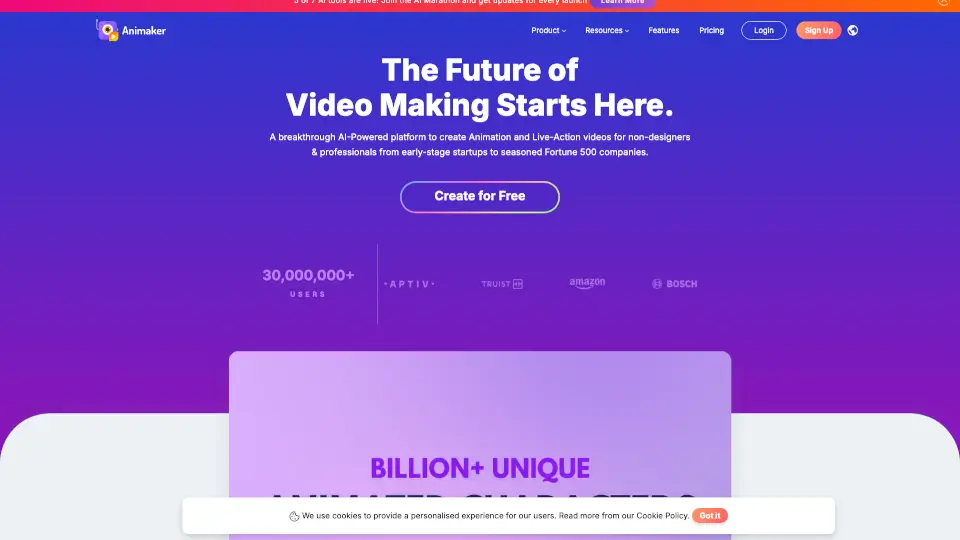
Trusted by over 30 million users and top global brands, Animaker combines smart speech recognition with creative flexibility. You get professional-quality subtitles without needing editing skills—or even a credit card. Plus, it works entirely online, so there’s nothing to download or install.
What are the features of Animaker’s Subtitle Generator?
- One-Click AI Subtitling: Automatically generates accurate subtitles from spoken audio in seconds.
- 134-Language Auto Translation: Break language barriers by translating subtitles into over 100 languages.
- Full Text Customization: Adjust fonts, colors, size, and positioning to match your brand guidelines.
- 20+ Subtitle Animations: Add dynamic entrance/exit effects to make captions visually engaging.
- Manual Subtitle Editor: Fine-tune timing, correct errors, or write captions from scratch for full control.
- Support for .srt, .vtt, and .ass Files: Upload existing subtitle files and sync them to your video.
- Free Forever Plan: Get 50 minutes of subtitling per month at no cost—no credit card required.
What are the use cases of Animaker’s Subtitle Generator?
- Create social media videos with captions for silent scrolling audiences on Instagram, Facebook, or TikTok.
- Make training or explainer videos accessible for global teams or non-native speakers.
- Produce multilingual marketing content for international campaigns without hiring translators.
- Enhance YouTube videos to boost SEO, watch time, and viewer retention.
- Add stylish, animated subtitles to birthday greetings, holiday messages, or event promos.
- Turn lecture recordings or webinars into captioned learning resources for students.
How to use Animaker’s Subtitle Generator?
- Upload your video using drag-and-drop or file selection—MP4, MOV, and other common formats work.
- Click the “Auto Subtitle” button to let AI transcribe and sync captions automatically.
- Customize appearance using the text editor: change font, color, background, or add animations.
- Use the timeline to adjust subtitle timing or correct any misheard words manually.
- Translate your subtitles into another language with one click (requires premium for download).
- Download your final video with embedded subtitles (watermarked on free plan) via the “Publish” button.