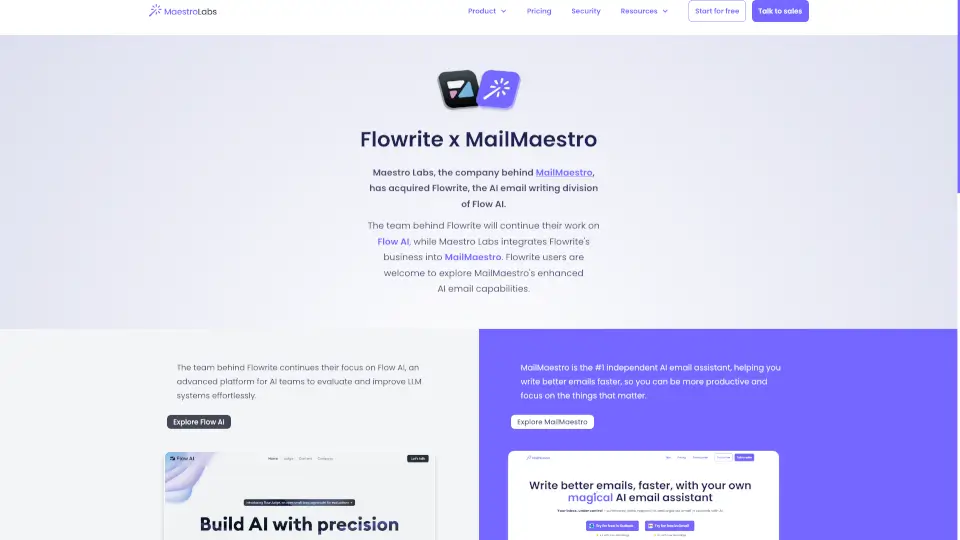


Qu'est-ce que MailMaestro ?
Vous passez des heures chaque jour à gérer vos emails, rédiger des réponses et prendre des notes en réunion ? MailMaestro et TeamsMaestro de Maestro Labs sont là pour vous libérer de cette charge mentale. Ces assistants IA s’intègrent directement à Outlook, Gmail et Microsoft Teams, sans nécessiter de téléchargement ni de changement d’onglet. Leur mission ? Vous faire gagner du temps — jusqu’à 8 heures par semaine — tout en améliorant la clarté et le professionnalisme de vos communications.
Conçus spécialement pour les utilisateurs de Microsoft 365, ces outils transforment les tâches répétitives en actions instantanées : rédaction d’emails en un clic, résumé automatique des fils de discussion, extraction des points d’action en réunion, et bien plus. Et le meilleur ? Vous pouvez commencer gratuitement, sans carte bancaire.
Quelles sont les caractéristiques de MailMaestro ?
- Rédaction d’emails IA : Décrivez votre intention en quelques mots, et obtenez trois brouillons d’email dans le ton, la longueur et la langue de votre choix (plus de 20 langues disponibles).
- Résumé intelligent de conversations : MailMaestro lit automatiquement vos fils d’emails et en extrait l’essentiel, avec des suggestions de réponse personnalisées.
- Prise de notes en réunion automatisée : TeamsMaestro rejoint vos appels Teams, capte la discussion en temps réel et génère un compte rendu clair avec objectifs, décisions et points d’action assignés.
- Gestion proactive de la boîte de réception : Des étiquettes et filtres intelligents classent vos emails par priorité et intention, réduisant le désordre et vous faisant gagner jusqu’à 2 heures par jour.
- Détection automatique des relances : L’outil repère les échéances et les tâches à suivre, puis vous envoie des rappels pour ne rien oublier.
- Sécurité renforcée : Données chiffrées en transit et au repos, conformité SOC 2 Type II, RGPD, HIPAA (avec BAA sur demande), et attestation Microsoft & Google.
Quels sont les cas d'utilisation de MailMaestro ?
- Un chef de projet reçoit 100+ emails par jour : il utilise MailMaestro pour répondre rapidement aux demandes courantes et résumer les longs échanges avant les points hebdomadaires.
- Une équipe internationale organise des réunions en anglais, espagnol et allemand : TeamsMaestro traduit et résume les notes dans la langue choisie, assurant une collaboration fluide.
- Un commercial doit envoyer des dizaines de relances personnalisées : il combine modèles magiques et IA pour accélérer ses envois tout en gardant un ton humain.
- Un manager débordé oublie souvent les deadlines : MailMaestro détecte les dates clés dans ses emails et lui envoie des alertes proactives.
- Un freelance travaille entre Gmail et Outlook : il utilise la même extension MailMaestro sur les deux plateformes, sans configuration complexe.
Comment utiliser MailMaestro ?
- Installez l’extension MailMaestro depuis le Microsoft AppSource (pour Outlook) ou le Chrome Web Store (pour Gmail).
- Dans Outlook ou Gmail, cliquez sur l’icône MailMaestro en haut à droite, puis connectez-vous à votre compte.
- Pour rédiger un email : cliquez sur « Compose », saisissez une courte instruction, choisissez ton et longueur, et sélectionnez l’un des trois brouillons générés.
- Pour répondre à un message : ouvrez le fil d’emails, cliquez sur « Reply », et laissez l’IA vous proposer des réponses contextuelles.
- Pour activer TeamsMaestro : ajoutez simplement l’application depuis la boutique Teams, et elle rejoindra automatiquement vos réunions planifiées.
- Accédez à vos notes de réunion après l’appel : elles sont envoyées par email à tous les participants et stockées dans l’onglet TeamsMaestro.