

What is Walling?
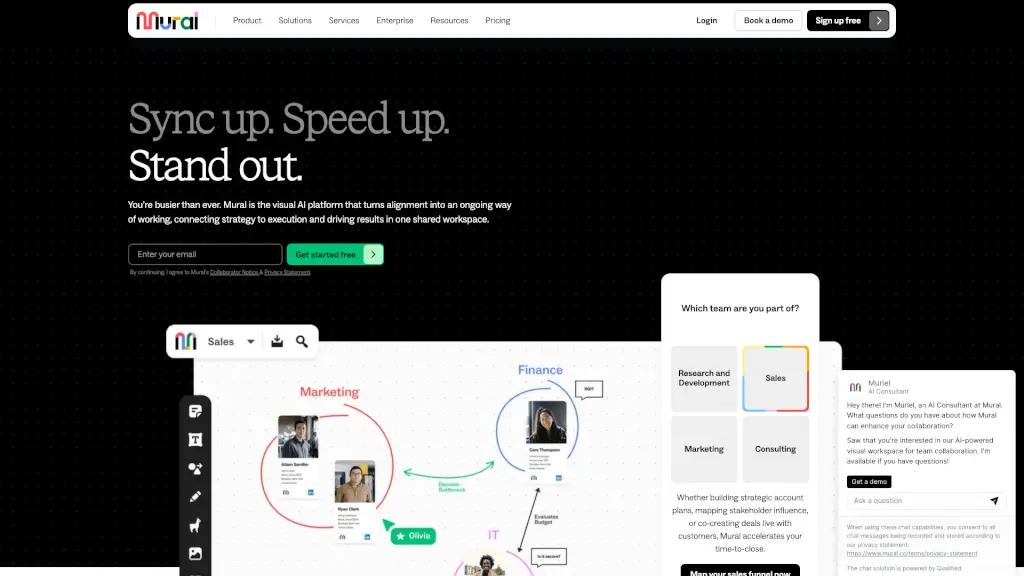
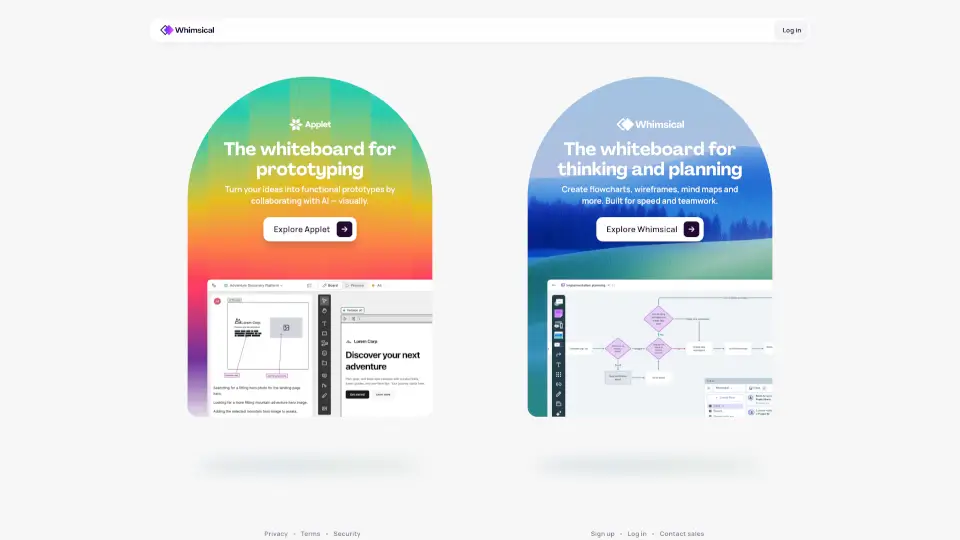
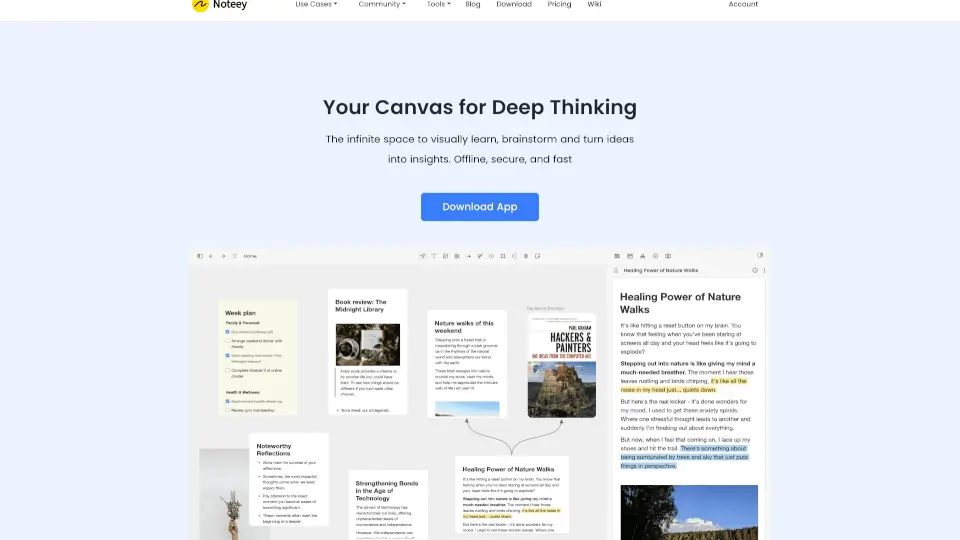
Walling completely changes how you organize work and share project ideas online. Instead of wrestling with rigid slide decks or endless scrolling documents, you get a clean, interactive visual board that keeps every note, file, and timeline in one place. Built for teams, creatives, and solo professionals, it combines AI-powered layout generation with intuitive drag-and-drop tools so you can go from messy brainstorming to polished presentations in minutes. Whether you are tracking a marketing campaign or planning a startup launch, Walling gives you the flexibility to present complex details clearly and impressively.
What are the features of Walling?
- AI Layout Assistant: Describe what you need to track, and the app instantly drafts organized sections, suggests relevant images, builds comparison tables, and fills in context notes.
- Infinite Visual Canvas: Say goodbye to page jumps. Arrange cards, text blocks, and media freely on a scrollable wall that adapts to your workflow.
- Rich Media & Link Embedding: Drag in inspiration photos, attach PDFs or videos, and pull live links from external apps directly onto your board.
- One-Click Publishing: Toggle visibility settings and generate a shareable link in seconds, letting you pick exactly which sections friends or clients see.
- Real-Time Collaboration: Invite teammates to comment, vote on concepts, and discuss options right on the canvas to speed up decision making.
- Built-In Task Tracker: Assign work, attach deadlines, and set reminder alerts so project milestones stay on schedule without switching apps.
What are the use cases of Walling?
- Marketing Launch Planning: Map out content calendars, attach brand guidelines, and tag channel owners to keep multi-platform campaigns aligned.
- Creative Portfolio Showcases: Display design mockups, case study breakdowns, and client feedback in a sleek, mobile-friendly gallery layout.
- Startup Concept Validation: Run quick polls, build feature comparison tables, and gather team feedback before committing to a full business plan.
- Remote Team Sync Meetings: Share meeting agendas, drop in reference screenshots, and leave threaded comments so remote discussions stay organized.
How to use Walling?
- Sign up for a free account and click Start Waling now to open a blank visual board ready for your project.
- Type your goal into the AI helper box to auto-generate a structured outline, sample images, and initial task rows.
- Click + Add to drop in text notes, drag reference images, or embed live links from tools like YouTube, Figma, or Dropbox.
- Group related items by dragging them into labeled sections, then use the grid snapping feature to keep the layout tidy.
- Press the Share button, toggle individual section visibility, and paste the generated URL into Slack, email, or social channels.