
What is JPGRM?
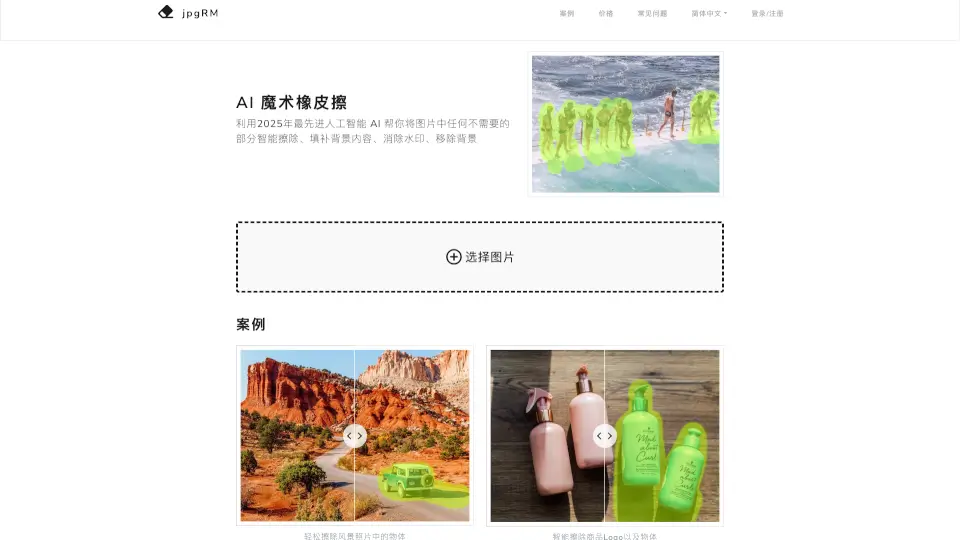
Tired of unwanted objects, watermarks, or messy backgrounds ruining your photos? Meet AI Magic Eraser from jpgRM.com—the smart, easy-to-use tool that leverages cutting-edge 2026 AI technology to seamlessly remove anything you don’t want from your images. Whether it’s a photobomber in your vacation pic or a distracting logo on a product shot, AI Magic Eraser intelligently fills in the background so it looks like the object was never there.
Unlike basic editing apps, this tool uses advanced Generative Adversarial Networks (GANs) to understand your image’s context and reconstruct missing areas with stunning realism. No design skills needed—just brush over what you want gone, and let AI do the heavy lifting in seconds.
What are the features of JPGRM?
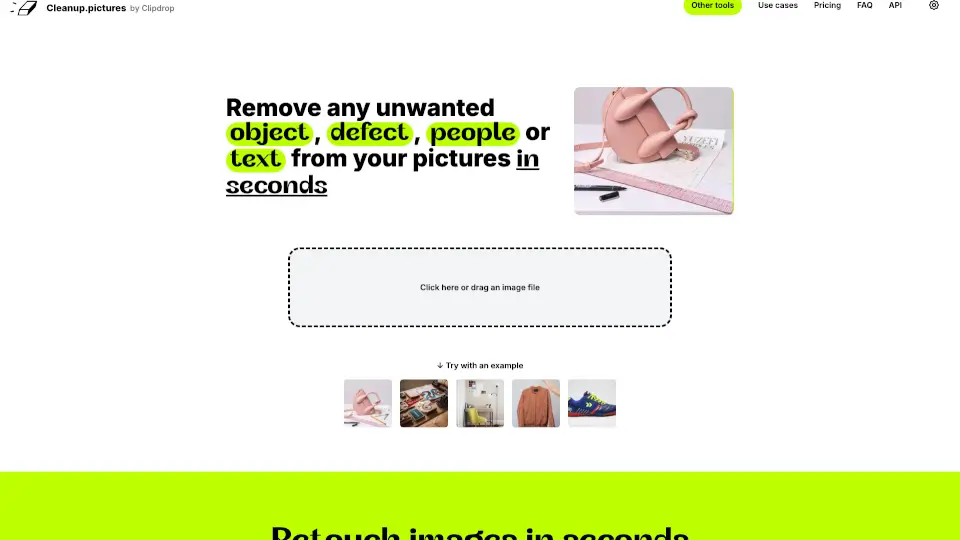
- Smart Object Removal: Instantly erase people, logos, wires, or any unwanted element with AI-powered background reconstruction.
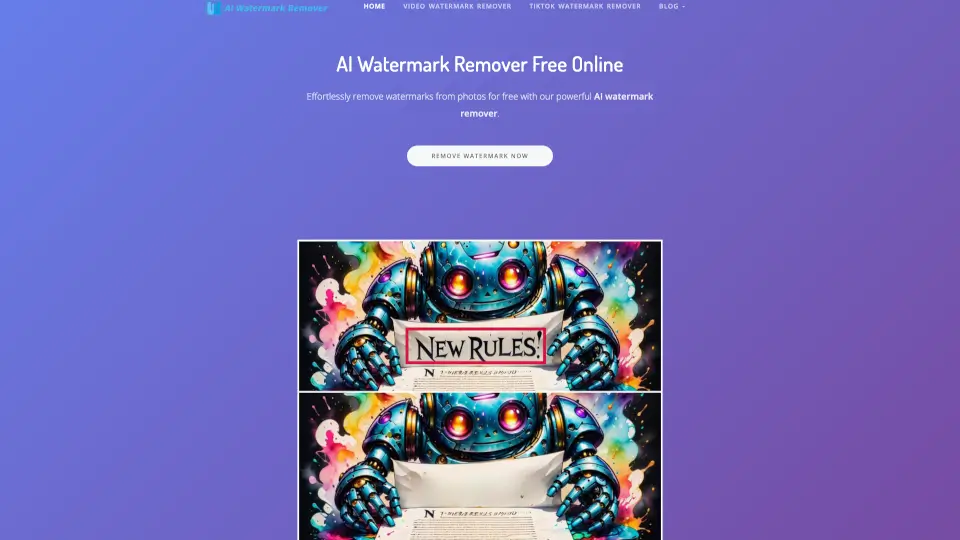
- Watermark Elimination: Remove text or logo watermarks cleanly without leaving blurry patches or artifacts.
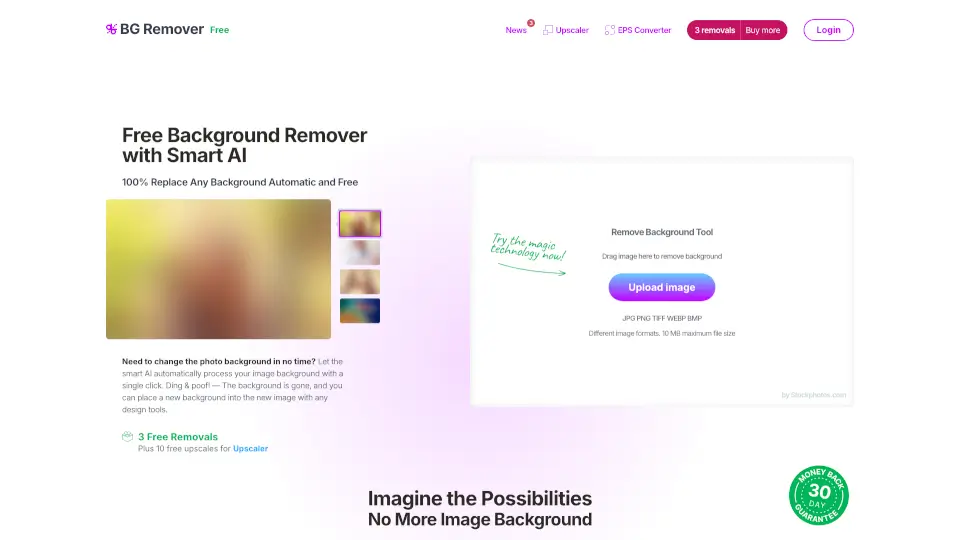
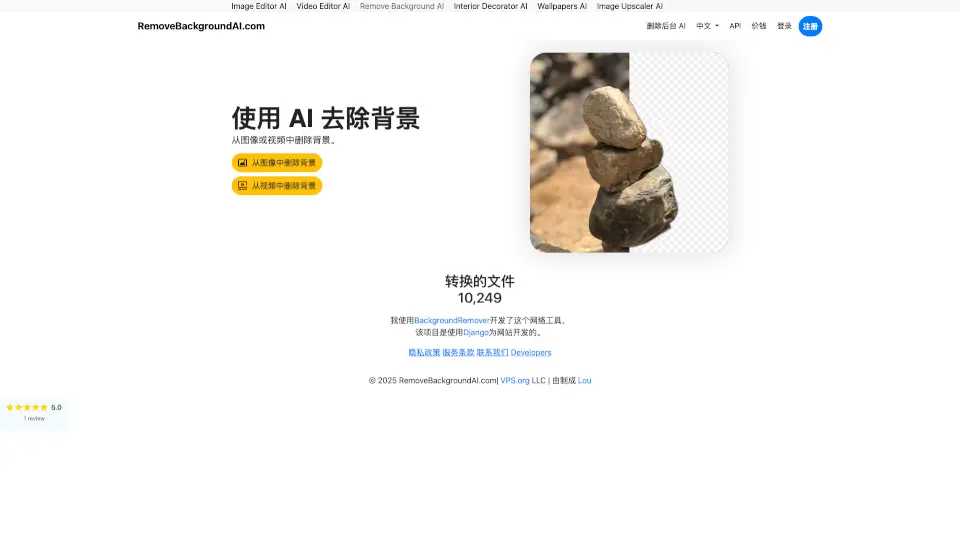
- One-Click Background Removal: Isolate subjects effortlessly for clean cutouts—perfect for e-commerce or social media.
- High-Resolution Output: VIP users can download results in crisp 4K quality, ideal for professional use.
- Cross-Device Compatibility: Works smoothly on desktops, tablets, and smartphones—no app download required.
- Privacy-Focused Processing: Your images are deleted immediately after processing—never stored or shared.
- Real-Time Editing Tools: Use intuitive controls like undo/redo, zoom, and side-by-side comparison for precision editing.
What are the use cases of JPGRM?
- Remove tourists or strangers from scenic travel photos to get that perfect solo shot.
- Clean up product images by erasing brand logos or packaging flaws for online stores.
- Delete crowded backgrounds in event photos to highlight your subject clearly.
- Strip watermarks from screenshots or downloaded images for personal or presentation use.
- Create transparent or solid-color backgrounds for profile pictures, ads, or marketing materials.
- Fix old or damaged photos by removing scratches, stains, or unwanted elements.
How to use JPGRM?
- Upload your image by clicking “Choose Image” or dragging it into the workspace.
- Select the brush tool and paint over the area or object you want to remove.
- Adjust brush size as needed and refine your selection—add or erase strokes freely.
- Click “Erase” to let the AI process and fill in the background automatically.
- Use “Compare” to toggle between original and edited versions for quality check.
- Download your result: free users get 720px; VIP unlocks 4K downloads with no limits.