What is Socratic by Google?
Google Lens (formerly Google Smart Lens) turns your smartphone camera into a powerful search tool that understands what it sees. Instead of typing vague descriptions like “blue floral dress” or “spiky houseplant,” you can simply point your camera at an object—and instantly get relevant info, shopping links, translations, or answers. It’s visual search made simple, smart, and surprisingly useful in everyday life.
Whether you’re traveling abroad, tackling homework, or redecorating your space, Google Lens helps you explore the world around you without needing the right words—just your eyes and your phone.
What are the features of Socratic by Google?
- Visual Search: Point your camera at objects to find similar products, identify items, or get related info online.
- Text Translation & Copying: Instantly translate over 100 languages from signs, menus, or documents—and copy text from images to paste anywhere.
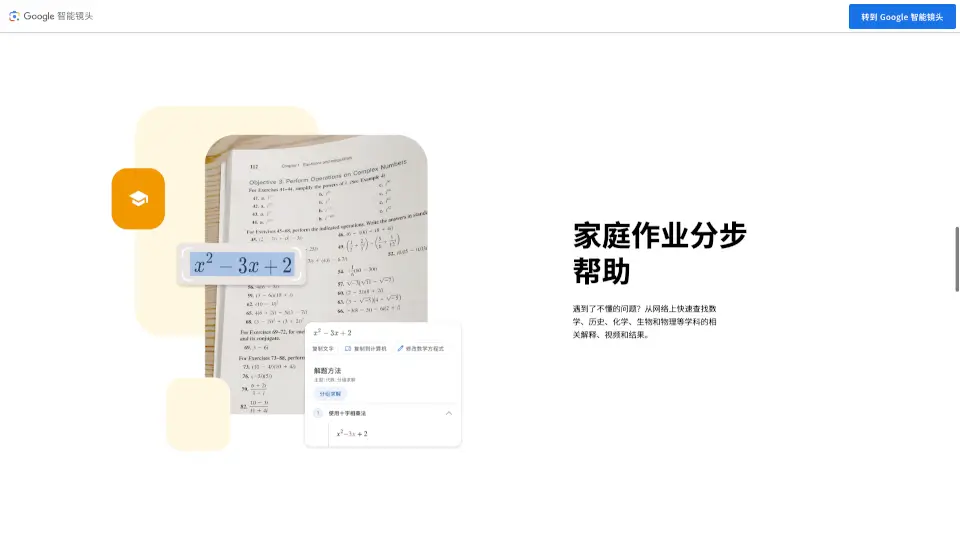
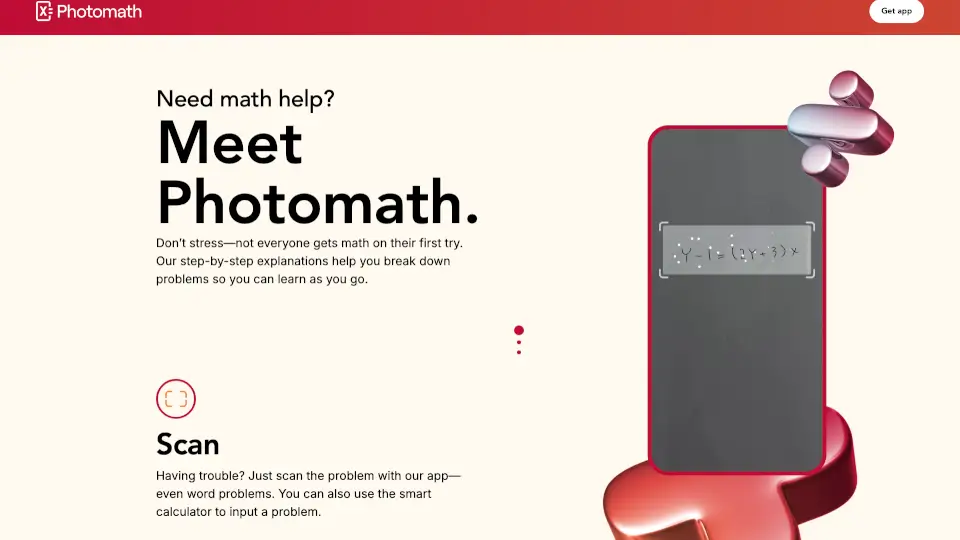
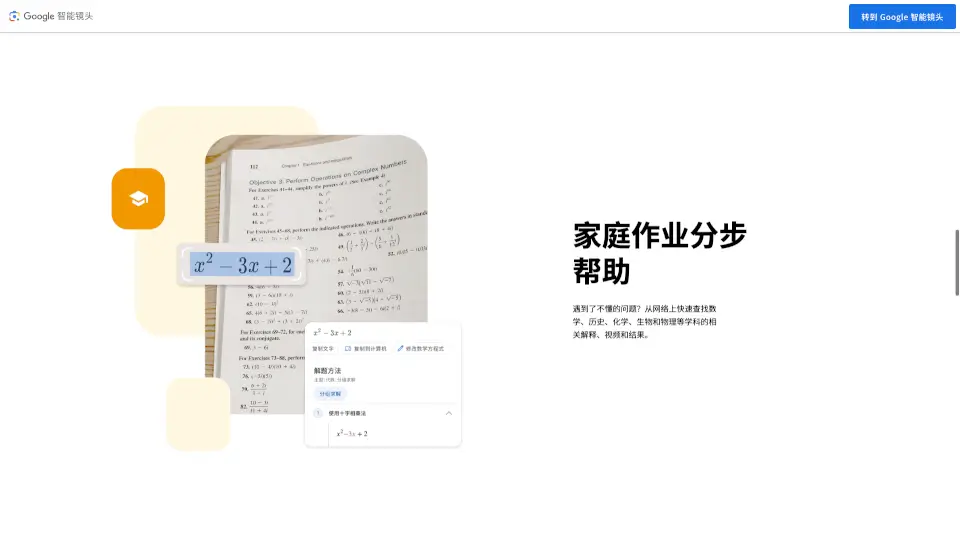
- Homework Help: Snap a photo of a math problem or science diagram and get step-by-step explanations, videos, and reliable sources.
- Plant & Animal ID: Identify unknown plants, flowers, insects, or dog breeds just by taking a picture.
- Cross-App Integration: Works seamlessly in Google app, Google Photos, Chrome, and even some Android camera apps.
What are the use cases of Socratic by Google?
- Spotting a stylish jacket on someone and finding where to buy it online
- Translating a foreign-language menu while traveling without typing a word
- Identifying a mysterious plant in your neighbor’s garden
- Copying a Wi-Fi password or serial number from a physical label into your notes
- Getting instant help with a tricky algebra equation from your textbook
- Finding matching furniture after seeing a cool chair in a café
How to use Socratic by Google?
- Open the Google app on your Android or iOS device
- Tap the Lens icon (camera symbol) in the search bar
- Point your camera at the object, text, or scene you want to explore
- Tap on detected items (like text, products, or landmarks) for instant results
- In Google Photos, open any image and tap the Lens icon to analyze saved pictures
- On supported Android phones, access Lens directly from your native camera app