
What is Pixelcut AI?
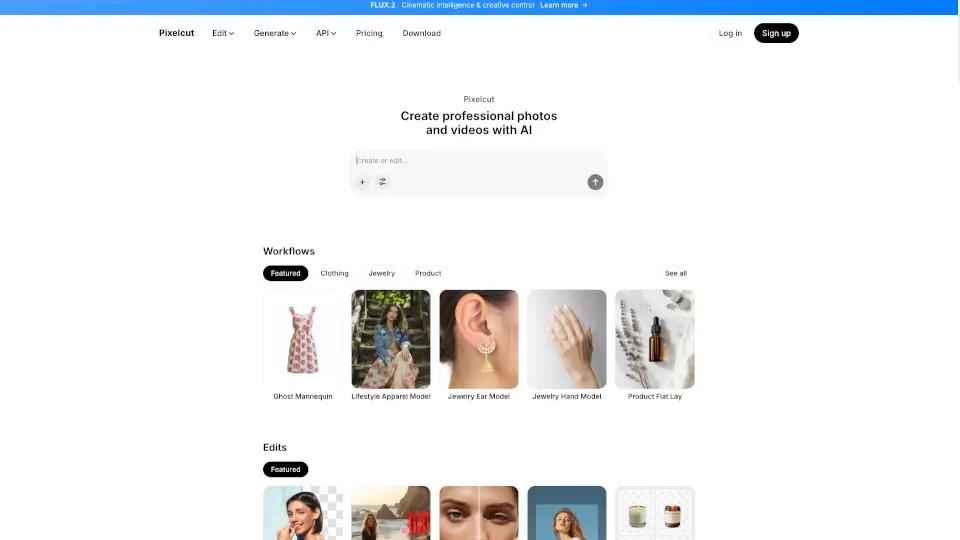
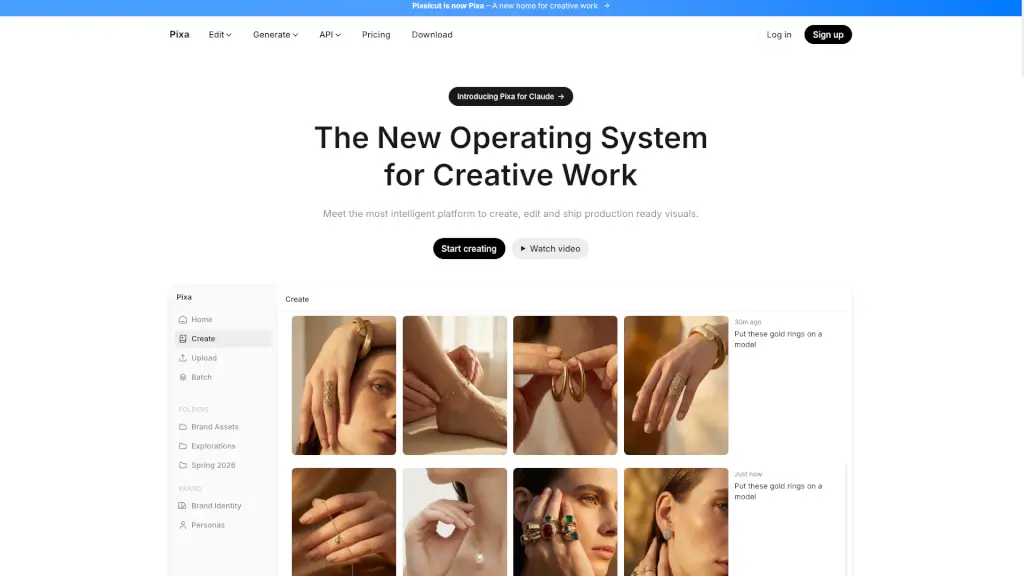
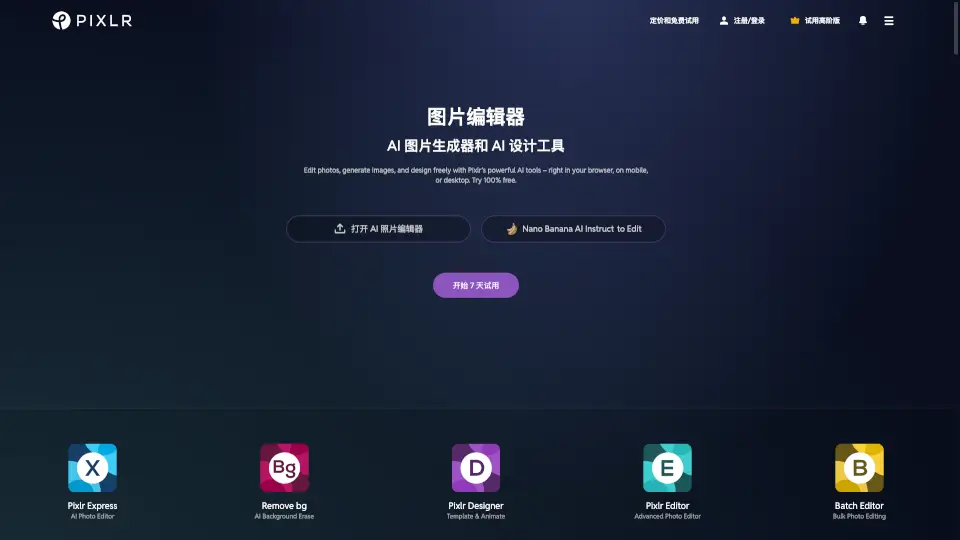
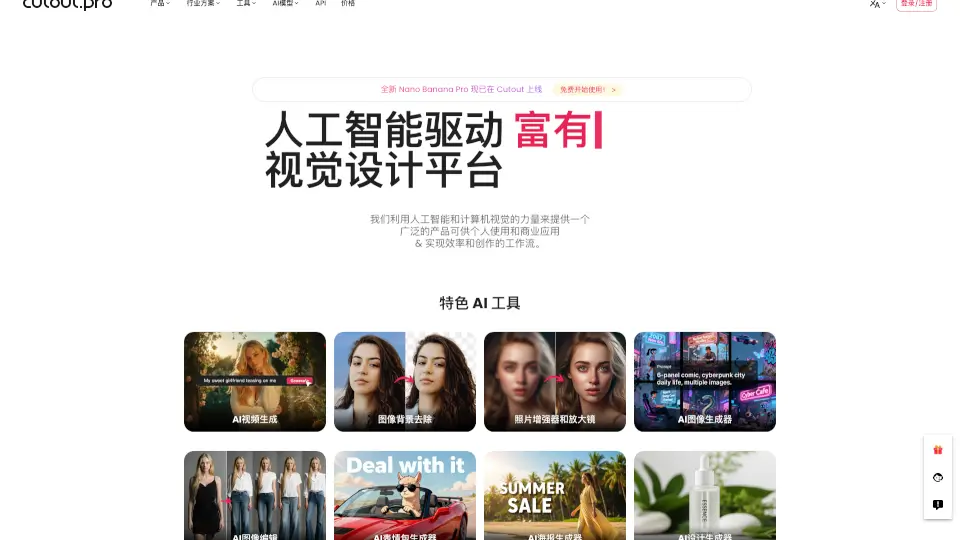
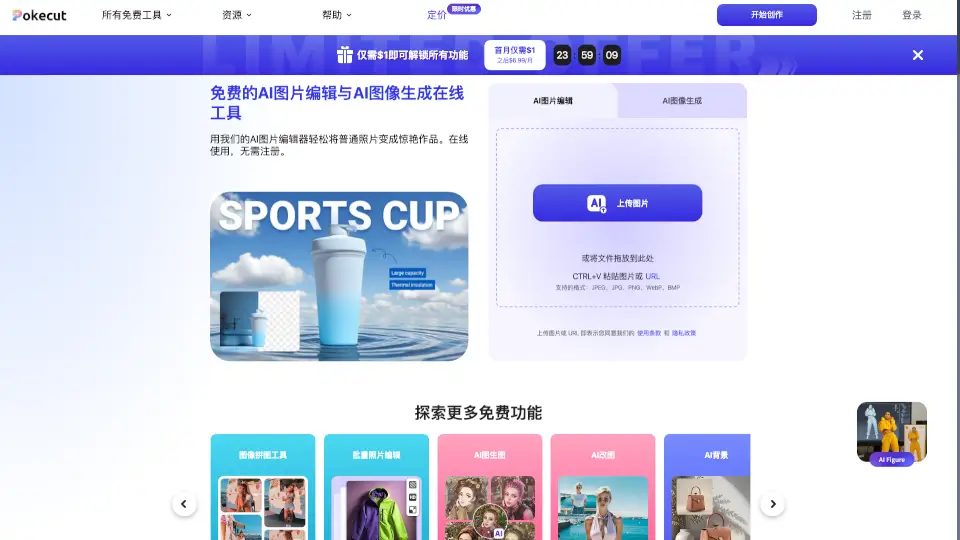
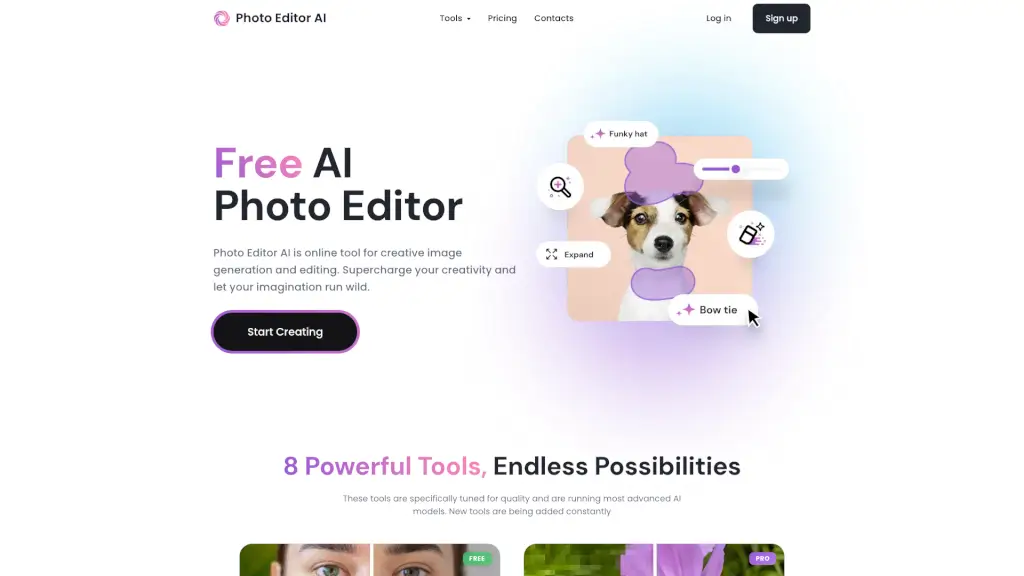
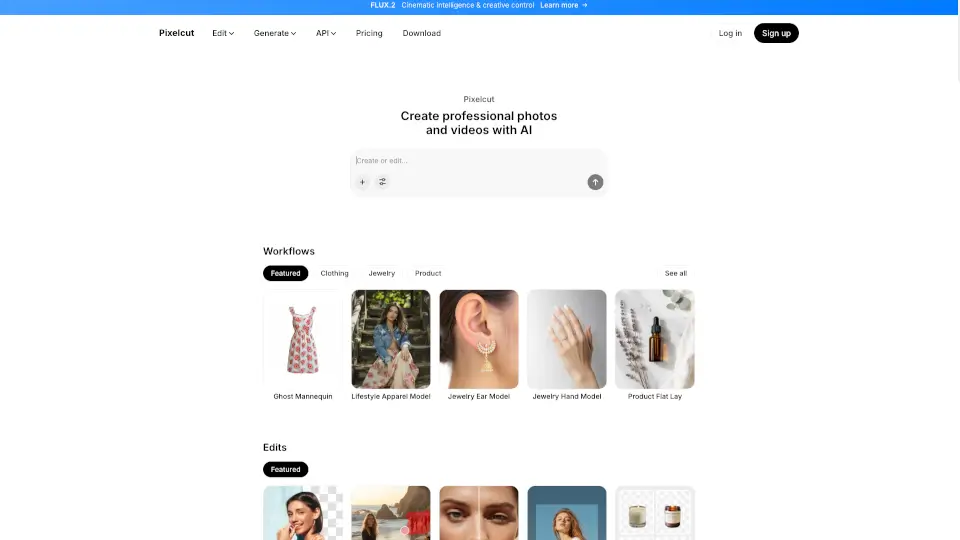
Pixelcut is a free AI photo editor that makes it super easy to create and edit professional-looking photos and videos. Whether you're a small business owner, a creative, or just someone who loves taking great pictures, Pixelcut has got you covered. With its intuitive tools, you can remove backgrounds, retouch images, upscale, and even generate new images and videos with just a few clicks or simple prompts. It's like having a professional photographer and graphic designer in your pocket!
What are the features of Pixelcut AI?
- Background Remover: Effortlessly remove the background from any image, making it perfect for product shots, social media posts, and more.
- Image Retouching: Smooth out blemishes, enhance colors, and make your photos look flawless with advanced retouching tools.
- Image Upscaling: Increase the resolution of your images without losing quality, making them perfect for large prints or high-resolution displays.
- Batch Editing: Save time by applying the same edits to multiple images at once, ideal for bulk processing.
- AI Image Generation: Turn your ideas into stunning images with just a few words or an uploaded reference image.
- Video Creation: Generate high-quality videos from a single prompt or image, bringing your scenes to life in minutes.
What are the use cases of Pixelcut AI?
- E-commerce Product Photos: Create professional-looking product images for your online store, complete with transparent backgrounds and enhanced details.
- Social Media Content: Quickly edit and enhance your photos to make them stand out on platforms like Instagram, Facebook, and Pinterest.
- Marketing Materials: Design eye-catching flyers, banners, and ads with high-quality images and videos.
- Personal Projects: Edit and enhance your personal photos and videos, making them look like they were done by a pro.
- Collaborative Work: Share folders with your team to collaborate on projects, generating and editing together in real-time.
How to use Pixelcut AI?
- Upload Your Image: Start by uploading the image you want to edit or use as a reference.
- Choose a Tool: Select the tool you need, such as Background Remover, Retouch, or Upscale.
- Apply Edits: Follow the on-screen instructions to apply your desired edits. You can also use prompts to generate new images or videos.
- Save and Share: Once you're happy with your edits, save the image or video and share it directly from the app.
- Batch Edit: If you have multiple images, use the Batch Edit feature to apply the same edits to all of them at once.
- Collaborate: Create shared folders to work on projects with your team, keeping everything organized and accessible.