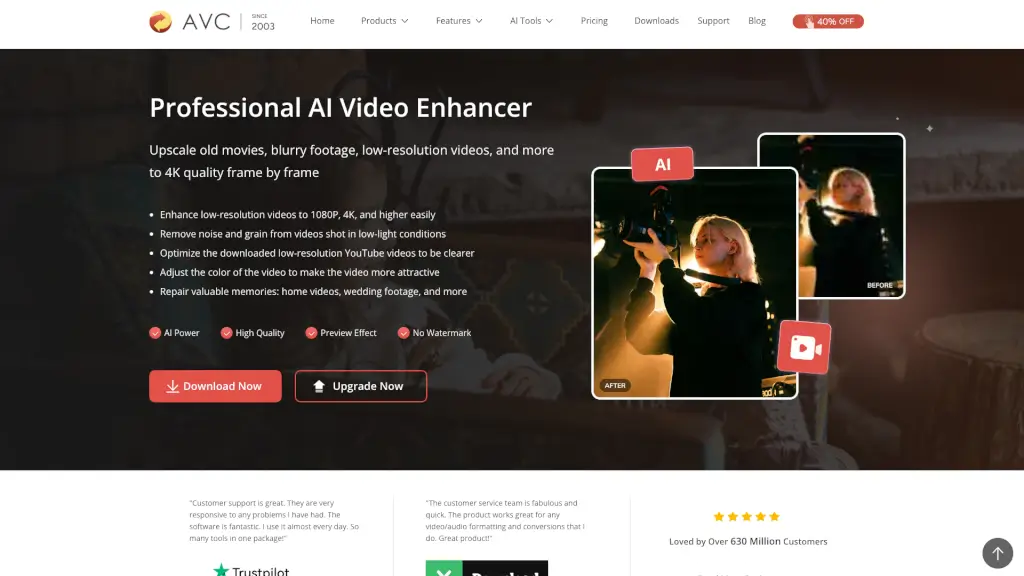
What is Any Video Converter AI Video Enhancer?
Have an old home video that looks grainy or a downloaded YouTube clip that's too blurry? The AI Video Enhancer in Any Video Converter Ultimate is here to fix that. This professional-grade tool uses smart AI to upscale your low-resolution videos up to 4K quality—frame by frame. It removes noise, sharpens details, and even adjusts colors, all without needing you to be a tech expert. Just upload your video, pick an AI option, and let the software do the heavy lifting. Whether it's restoring precious memories or polishing footage for social media, this enhancer makes your videos look crisp and clean.
What are the features of Any Video Converter AI Video Enhancer?
- AI-Powered Upscaling: Intelligently analyzes and reconstructs each frame to upscale videos to 1080p, 2K, 4K, and even 8K (depending on version). No more blurry pixelation from simple stretching.
- Flexible Scaling Options: Choose to upscale by 100% (restoration and optimization), 200% (dramatic clarity for large screens), or 400% (extreme detail extraction from low-res footage).
- Noise & Grain Removal: Cleans up videos shot in low light, reducing unwanted grain and artifacts for a cleaner picture.
- Color Optimization: Adjusts saturation and contrast automatically to make videos more vibrant and attractive.
- Real-Time Preview: See the AI-enhanced effect before you commit. Drag the progress bar to preview any frame—no more guessing with confusing parameters.
- Trim & Enhance Specific Segments: Use the built-in AI trimmer to cut out unwanted parts and only enhance the sections you care about.
- Watermark-Free Output: Upgrade to the Ultimate version to get high-quality, unwatermarked results.
What are the use cases of Any Video Converter AI Video Enhancer?
- Restore old home videos and wedding footage: Bring grainy, faded memories back to life so you can share them on Instagram, TikTok, or with family.
- Fix blurry YouTube or Facebook downloads: Enhance low-resolution videos you've saved from streaming sites to make them watchable on big screens.
- Improve low-light footage: Clean up videos shot at night or in dim conditions, removing noise and revealing hidden details.
- Prepare videos for professional use: Upscale archived footage for presentations, edits, or archival purposes without losing quality.
- Polish social media clips: Make your short videos look sharper and more appealing before posting online.
How to use Any Video Converter AI Video Enhancer?
- Open the AI Video Enhancer: Launch Any Video Converter Ultimate and select the AI Video Enhancer tool.
- Upload your low-quality video: Click "Add Files" to import the video you want to enhance.
- Choose your output options: On the right panel, pick scaling (100%, 200%, or 400%) or a target resolution (1080p, 4K). Use the "Preview Enhanced Frame" button to check the effect in real-time.
- Start enhancement: Hit "Enhance Now" and wait for the AI to process your video. The high-quality file will be saved automatically.