What is VCOWS?
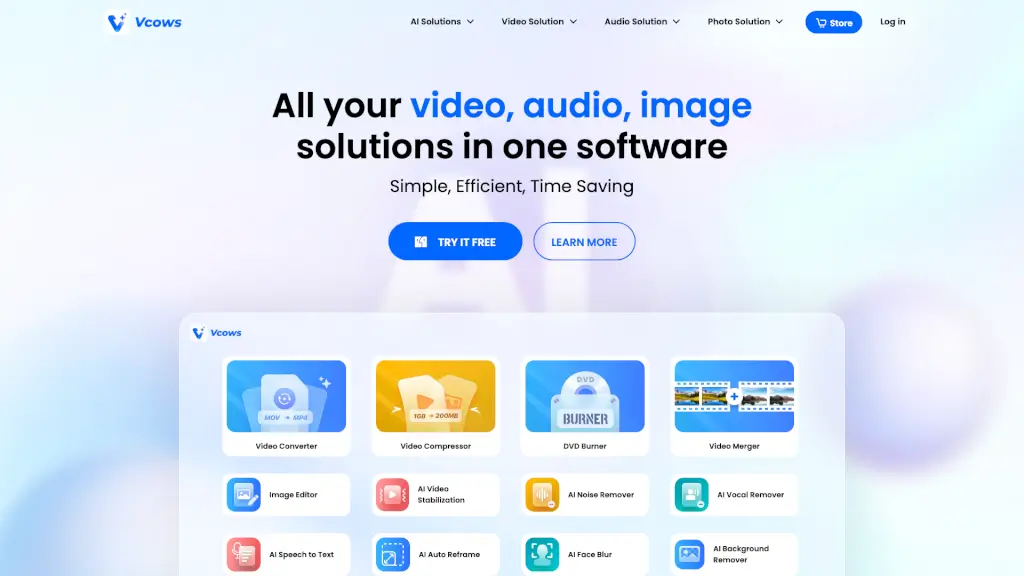
Welcome to Vcows, your one-stop solution for all things multimedia! Whether you're a content creator, a hobbyist, or just someone who loves playing with photos and videos, Vcows has got you covered. With a wide range of tools from video editing to audio conversion, Vcows is designed to make your creative process smoother and more enjoyable. Say goodbye to juggling multiple apps—Vcows brings everything you need into one intuitive platform.
What are the features of VCOWS?
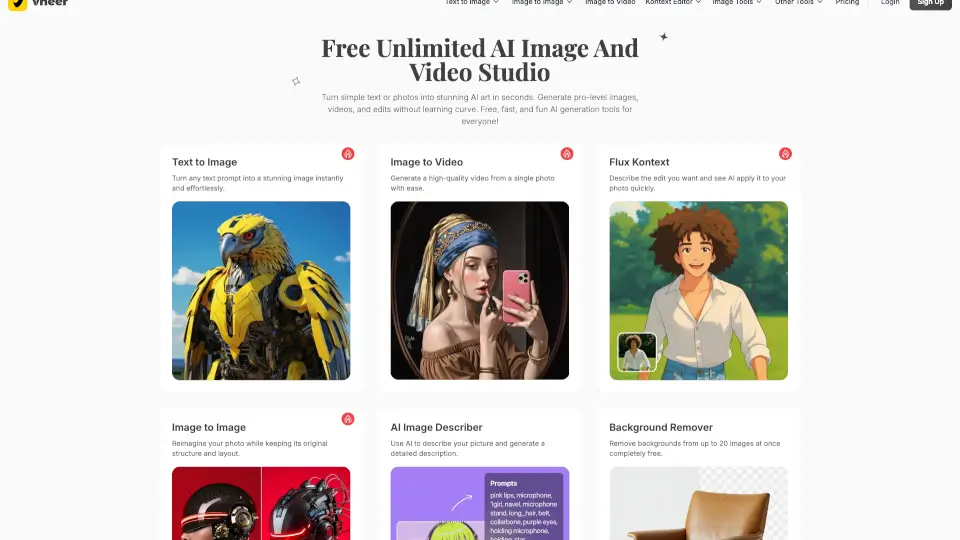
- AI Text to Video: Transform your written words into engaging videos with the power of AI.
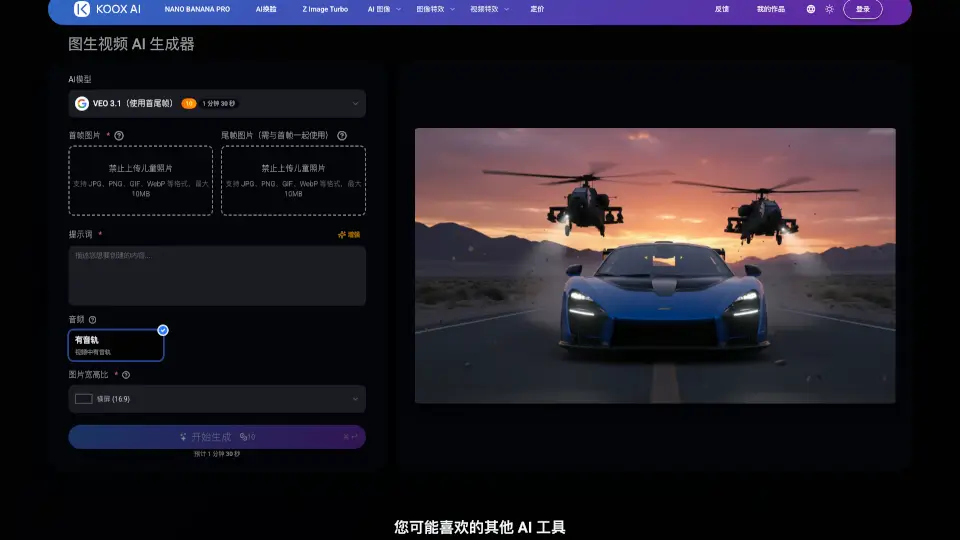
- AI Image to Video: Convert still images into dynamic video content, perfect for social media.
- AI Background Remover: Automatically remove backgrounds from images, making it easy to customize and edit.
- Video Editor: A comprehensive editor that lets you trim, crop, and add effects to your videos.
- Video Compressor: Reduce the size of your videos without compromising on quality, ideal for sharing online.
- AI Face Blur: Anonymize faces in your videos with a simple click, ensuring privacy and security.
What are the use cases of VCOWS?
- Content Creators: Use AI Text to Video to quickly create engaging content for YouTube, Instagram, and TikTok.
- Photographers: Leverage the AI Background Remover to easily change and customize image backgrounds.
- Educators: Create interactive and visually appealing educational content with the Video Editor.
- Businesses: Compress large video files for easier sharing and storage using the Video Compressor.
- Privacy Enthusiasts: Blur faces in surveillance footage or personal videos to protect identities with AI Face Blur.
How to use VCOWS?
- Step 1: Download and install Vcows software from the official website.
- Step 2: Launch the software and select the tool you need, such as the Video Editor or AI Background Remover.
- Step 3: Upload your media file (image, video, or audio) into the software.
- Step 4: Use the intuitive interface to apply the desired effects or conversions.
- Step 5: Preview your changes and make any necessary adjustments.
- Step 6: Save and export your final project to your preferred format.