
What is Ichigo Manga Translator?
Meet Ichigo Reader, your smart reading companion designed to make consuming long-form content online a breeze. This tool strips away the clutter of ads, pop-ups, and messy layouts, transforming any webpage into a clean, distraction-free reading experience. Whether you're deep into research, catching up on news, or enjoying a long article, Ichigo Reader helps you focus on what matters most: the words.
What are the features of Ichigo Manga Translator?
- Distraction-Free Reading ModeAutomatically removes ads, sidebars, and navigation menus, leaving you with a clean, uncluttered page.
- Customizable Typography & LayoutAdjust font size, style, line spacing, and background color to match your reading preferences.
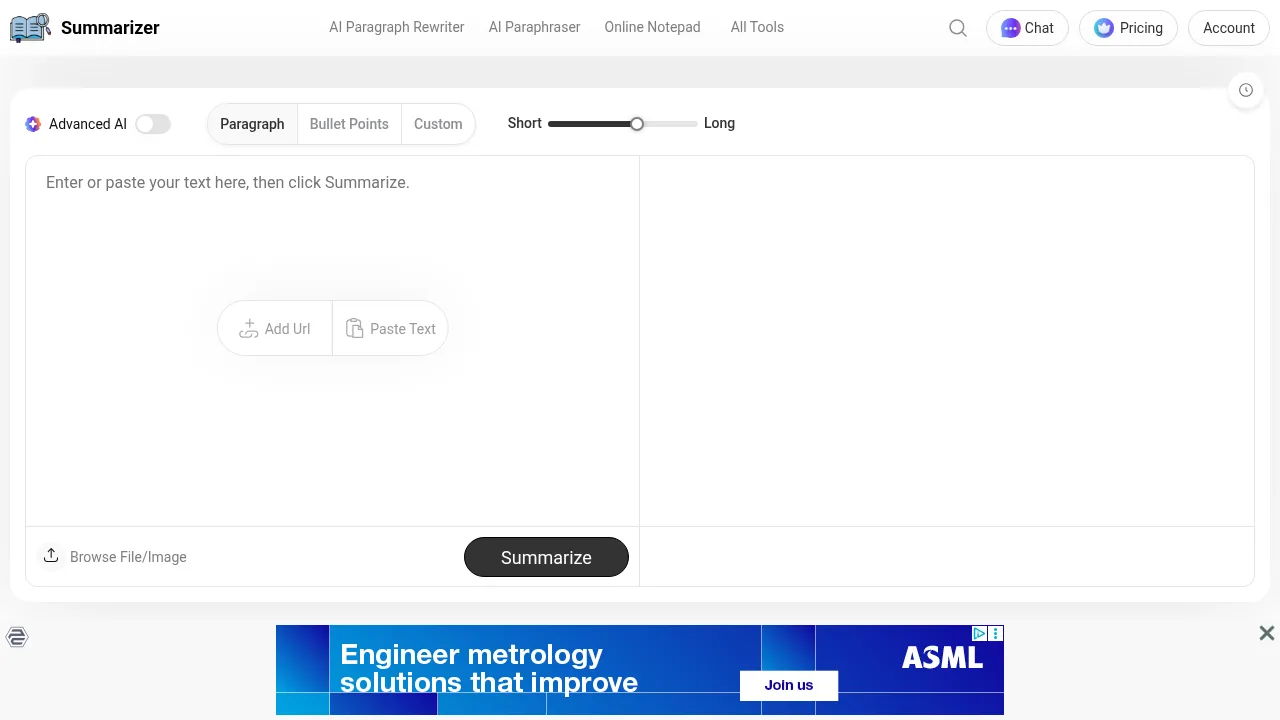
- Built-in Article SummarizationQuickly get a short summary of the page's main points, perfect for skimming long reports.
- Offline Reading SupportSave articles to read later, even without an internet connection.
- Markdown & Highlighting ToolsAnnotate key passages and export your notes in Markdown format for easy sharing or study.
What are the use cases of Ichigo Manga Translator?
- Students & ResearchersOrganize long research papers and online textbooks into a readable format, making study sessions less eye-straining.
- Busy ProfessionalsQuickly scan through daily news digests and industry reports using the summarization feature.
- Casual ReadersEnjoy blog posts and long-form journalism without annoying pop-ups or auto-playing videos.
- Content CreatorsSave and highlight inspiration from web articles, then export notes for your own writing projects.
How to use Ichigo Manga Translator?
- Install the Browser ExtensionIchigo Reader is available as a lightweight extension for Chrome, Firefox, and Edge.
- Click the IconWhen you land on a messy article, click the Ichigo Reader icon in your browser toolbar.
- Customize the ViewUse the sidebar panel to adjust the reading theme, font, and layout to your liking.
- Save or SummarizeClick the "Summarize" button for a quick overview, or hit "Save" to add the article to your offline library.