
What is Herdr?
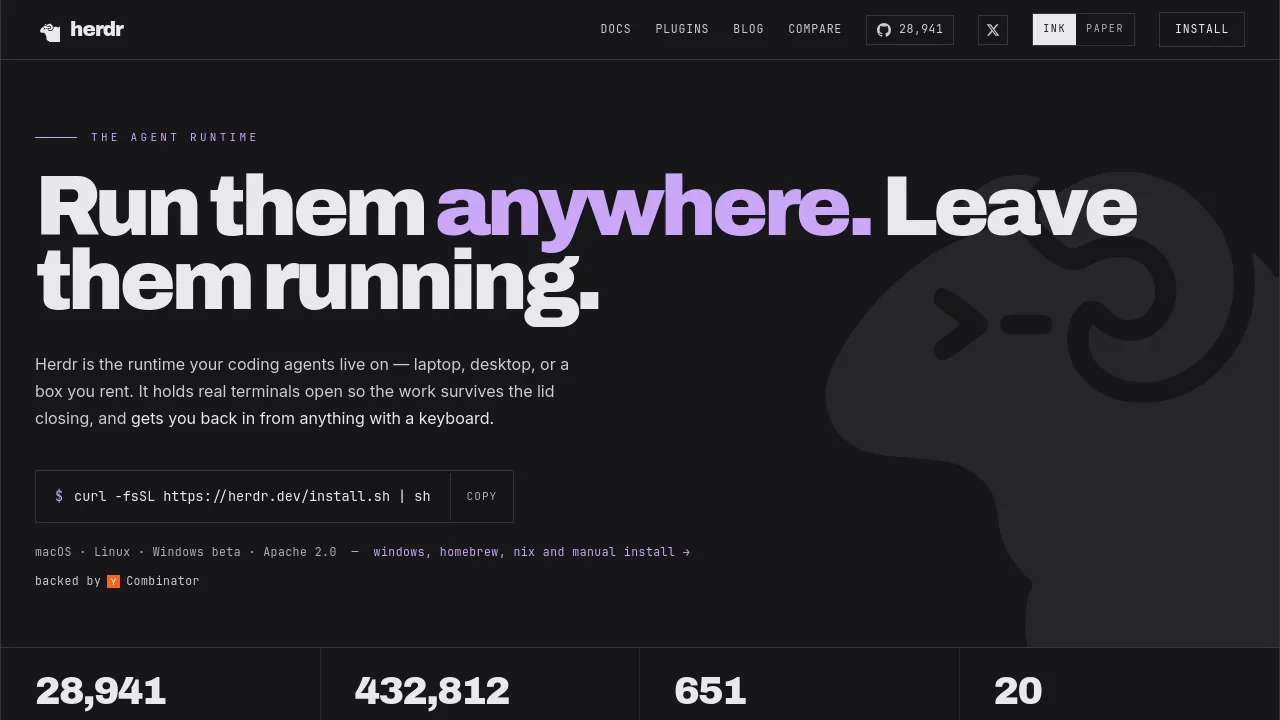
Herdr is an AI agent runtime for developers who want coding agents to keep working even after they close their laptop lid. It runs as a background server on macOS, Linux, or Windows, holding real terminal sessions that survive network drops and machine restarts. Herdr works with popular agent CLIs like Claude Code, Codex, and opencode without wrapping or replacing them. It provides a socket API and sidebar for monitoring agent status—working, blocked, or idle—so you never have to hunt for a stuck agent.
What are the features of Herdr?
- Persistent Terminal Sessions: Agents continue running after you close the lid or lose network. Restart your machine and Herdr restores the layout and resumes sessions automatically.
- Real‑Time Agent Status Indicators: Each pane shows a colored dot—working, blocked, or idle—so you can immediately see which agent is waiting on you without scanning every terminal.
- Agent‑Native CLI & Socket API: The same API that agents use to split panes, start each other, and wait for blocked peers. No keystroke injection; agents communicate properly.
- Multi‑Agent Workspace Layout: Organize agents into named workspaces (e.g., “web-dashboard”, “data-pipeline”). Switch between them from the sidebar with a single click.
- Broad Agent CLI Compatibility: Detects 20+ agent CLIs out of the box—Claude Code, Codex, opencode, Cursor, Grok, Copilot, Hermes, and more. No changes to your existing agent setup.
- Plugin Ecosystem: Over 636 community plugins extend Herdr’s capabilities, including integrations with monitoring, notification, and deployment tools.
What are the use cases of Herdr?
- Long‑Running Data Backfills: Run a data pipeline agent that processes millions of rows overnight. Herdr keeps the session alive even if you close your laptop, and checkpointing lets it resume from the last committed offset.
- Multi‑Agent Web Development: One agent builds a dashboard while another deploys to staging. Herdr shows both statuses in a single workspace, and agents can prompt each other when blocked.
- Remote SSH Session Management: Connect to a Herdr server from any device with a keyboard. Start a session on your desktop, then pick it up from a laptop or phone without losing progress.
- Continuous Integration Monitoring: Let an agent run tests and checks in a persistent terminal. Herdr’s status indicators alert you when a build fails or a test suite passes.
How to use Herdr?
- Install Herdr on macOS, Linux, or Windows by running the one‑line curl or PowerShell command from the website.
- Start the Herdr server in the background (it auto‑detects and launches on first run). Your existing agent CLIs will now have persistent terminals.
- Open the Herdr client to view workspaces and agent panes. Click any agent to see its live terminal output—no need to reattach.
- Use the socket API to let agents communicate: split panes, prompt each other, and wait for blocked peers instead of sending keystrokes blindly.
- For remote access, run the Herdr client from another machine and connect to your server’s SSH bridge.