Qu'est-ce que Autotag by Bimrock AI ?
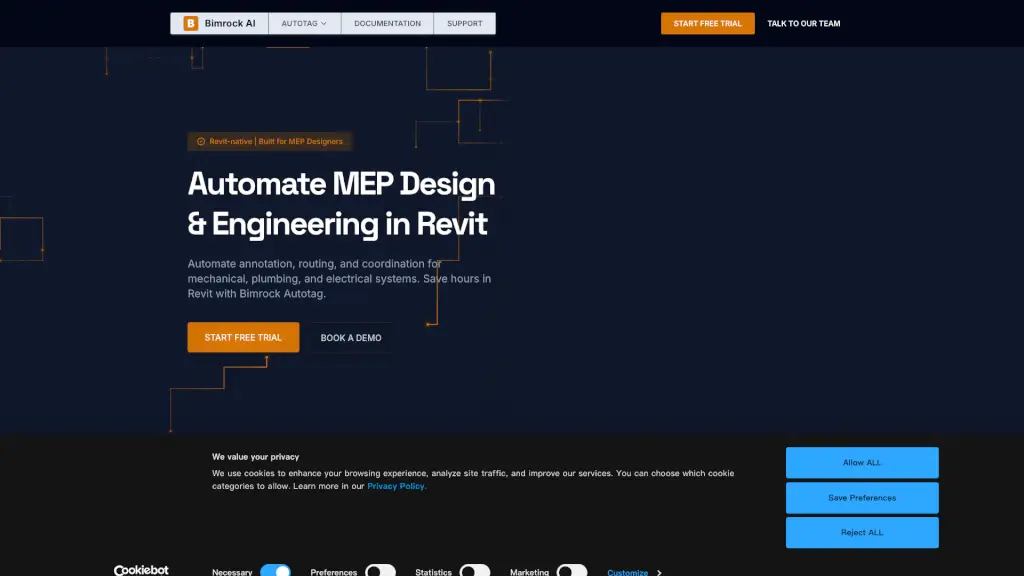
Bimrock AI est une solution révolutionnaire pour les ingénieurs et concepteurs MEP (Mécanique, Électricité, Plomberie) qui utilisent Revit. Avec Bimrock, vous pouvez automatiser la création de notes, le tracé des conduits et la coordination des systèmes, ce qui vous permet de gagner un temps précieux. Fini les tâches fastidieuses et répétitives, Bimrock s'occupe de tout avec précision, vous laissant plus de temps pour vous concentrer sur l'ingénierie créative.
Quelles sont les caractéristiques de Autotag by Bimrock AI ?
- Automatisation de l'annotation : Automatisez le placement des étiquettes, évitez les chevauchements et assurez une cohérence dans tous vos documents.
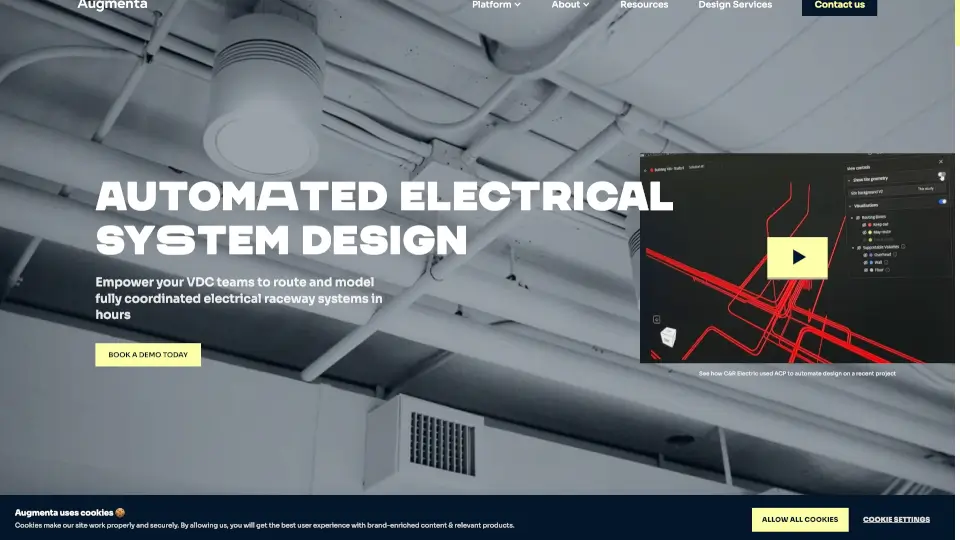
- Routage intelligent : Simplifiez le tracé des conduits, câbles et tuyaux grâce à des algorithmes intelligents.
- Coordination simplifiée : Améliorez la collaboration entre les différentes disciplines en assurant que tous les éléments sont parfaitement alignés.
- Intégration native Revit : Utilisez directement les familles d'étiquettes existantes dans Revit, sans besoin de familles spéciales.
- Profil partageable : Créez un profil une fois et partagez-le avec toute votre équipe pour une uniformité parfaite.
Quels sont les cas d'utilisation de Autotag by Bimrock AI ?
- Documentation rapide : Automatisez l'annotation de tous les éléments MEP dans un projet, réduisant ainsi le temps de documentation de 90%.
- Tracé précis : Générez des routages optimisés pour les systèmes de ventilation, d'électricité et de plomberie, assurant une efficacité maximale.
- Collaboration fluide : Partagez les profils d'annotation avec votre équipe pour garantir que chaque membre travaille selon les mêmes standards.
Comment utiliser Autotag by Bimrock AI ?
- Définissez vos règles d'annotation : Configurez une fois vos préférences d'étiquetage et appliquez-les à l'ensemble du projet.
- Sélectionnez les vues à traiter : Choisissez les vues dans lesquelles vous souhaitez automatiser l'annotation.
- Lancez l'automatisation : Cliquez sur "Démarrer" et laissez Bimrock gérer le placement des étiquettes et le routage.
- Révisez et ajustez : Vérifiez les résultats et apportez les modifications nécessaires, si besoin.