
What is AI Toolbox Extract Audio from Video?
Need to pull audio from a video without risking your privacy? The AI Toolbox Audio Extractor lets you extract high-quality audio directly in your browser—no uploads, no registration, and zero data sent to servers. Whether you're saving a podcast episode, grabbing music from a concert clip, or converting lecture videos for offline listening, this tool handles it all locally on your device.
Powered by FFmpeg + WebAssembly, it supports popular output formats like MP3, WAV, FLAC, AAC, and OGG while preserving full audio fidelity. Best of all, your files never leave your computer, making it ideal for sensitive or personal content.
What are the features of AI Toolbox Extract Audio from Video?
- 100% Local Processing: All extraction happens in your browser—no cloud uploads or external servers involved.
- Multiple Output Formats: Choose from MP3 (universal), WAV (uncompressed), FLAC (lossless compressed), AAC (Apple-optimized), or OGG (open-source).
- No File Size Limits: Process large videos limited only by your device’s available memory—not server quotas.
- Zero Registration Required: Start extracting instantly—no sign-ups, logins, or email verification.
- No Watermarks or Ads: Clean, professional output with nothing added or removed.
- Offline Capable: Once loaded, the tool works without an internet connection.
- Broad Video Format Support: Works with MP4, MKV, WebM, AVI, MOV, WMV, FLV, 3GP, MPEG, OGV, and M4V files.
What are the use cases of AI Toolbox Extract Audio from Video?
- Convert YouTube-downloaded videos into MP3s for podcast playlists
- Extract lossless FLAC audio from concert footage for music sampling in DAWs
- Pull voiceovers from training videos as WAV files for editing in Audacity
- Create lightweight MP3s (128 kbps) from interview recordings for easy sharing
- Backup audio tracks from family videos without re-uploading to third-party services
- Prepare voice narration from screen recordings for e-learning modules
How to use AI Toolbox Extract Audio from Video?
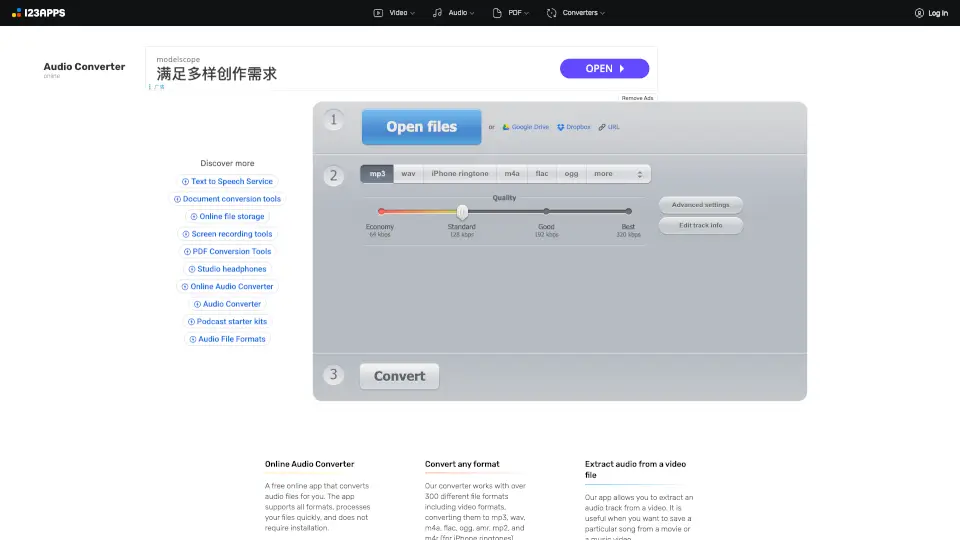
- Drag and drop your video file into the browser window or click “Browse” to select it
- Pick your desired output format (MP3, WAV, FLAC, AAC, or OGG)
- For MP3/AAC/OGG, choose a bitrate: 128 kbps (small size), 192 kbps (balanced), or 320 kbps (high quality)
- Click “Extract Audio”—processing starts immediately on your device
- Download the extracted audio file once ready (usually within seconds)
- To process another file, click “Extract Other File” after downloading