
What is Tome App AI?
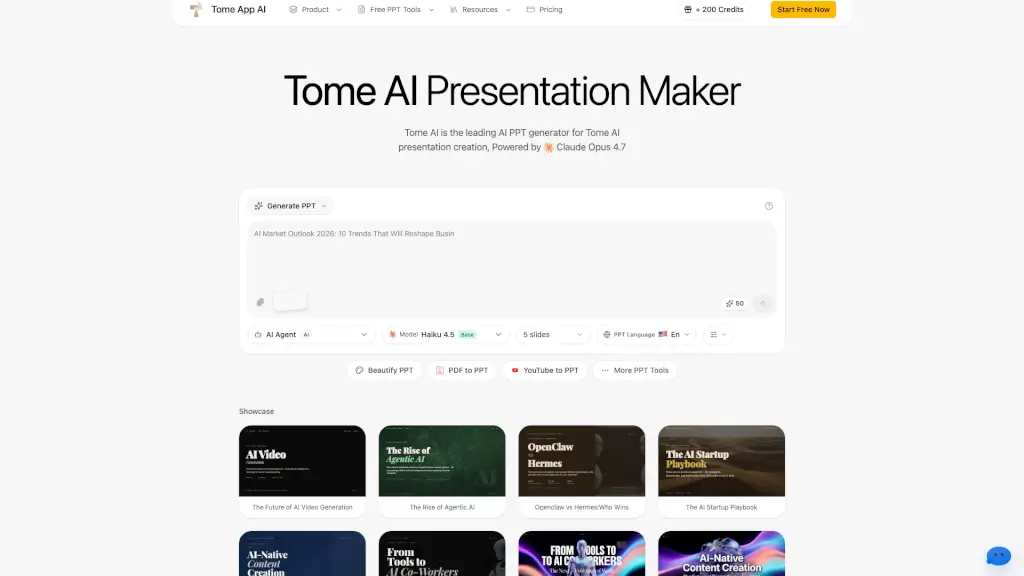
Tome App AI is a smart AI presentation maker that turns your ideas into polished slides in minutes. Powered by Claude Opus 4.7, it handles design, layout, and content structure automatically—so you can focus on your message. Whether you need a professional business deck, a classroom lecture, or a quick YouTube-to-PPT conversion, Tome App AI makes it fast and easy.
What are the features of Tome App AI?
- AI Generate PPT: Describe your topic in plain text, and the AI creates a complete slide deck with professional layouts and compelling content.
- AI Beautify PPT: Upload your existing PowerPoint and let the AI enhance the design, fix layouts, and apply consistent styling.
- PDF to PPT: Convert PDF files into editable PowerPoint presentations with proper structure.
- YouTube to PPT: Turn YouTube videos into slide decks by extracting key points automatically.
- Speech Notes from PPT: Generate detailed speaker notes and talking points for each slide to help you deliver confident presentations.
- Multi-language Support: Create presentations in multiple languages with proper formatting and typography.
- Export to PPTX: Download your finished presentation as a standard PowerPoint file compatible with Microsoft PowerPoint, Google Slides, and Keynote.
What are the use cases of Tome App AI?
- Business professionals who need to create polished sales decks or investor pitches quickly without hiring a designer.
- Educators and students preparing lecture slides or project presentations with structured content and visuals.
- Content creators converting YouTube videos or blog posts into slide decks for repurposing content.
- Marketers generating brand-consistent presentations from existing PDFs or Word documents.
- Non-native speakers who need to create presentations in multiple languages while maintaining professional formatting.
How to use Tome App AI?
- Step 1: Go to the Tome App AI website and click "Start Free Now" to begin.
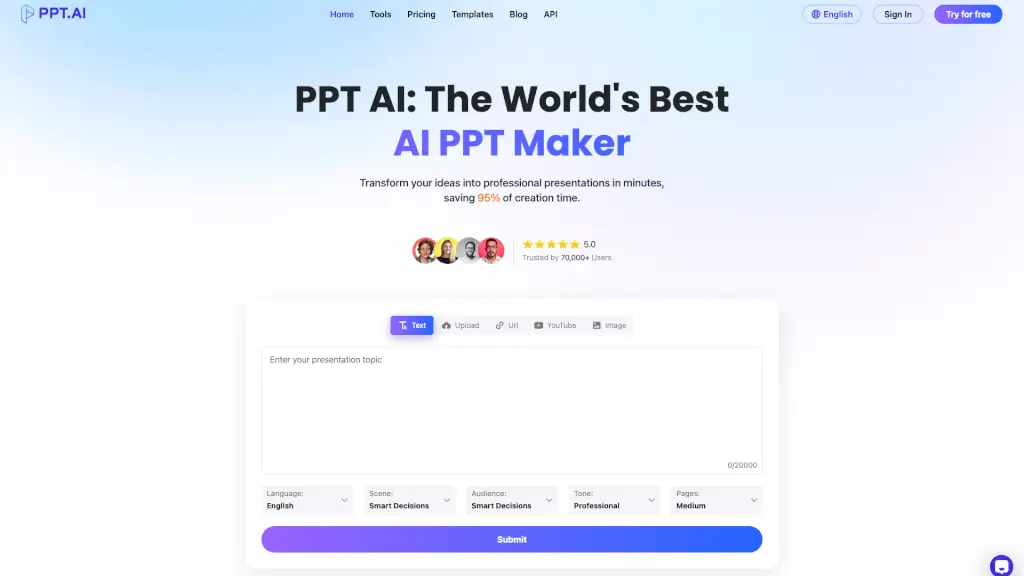
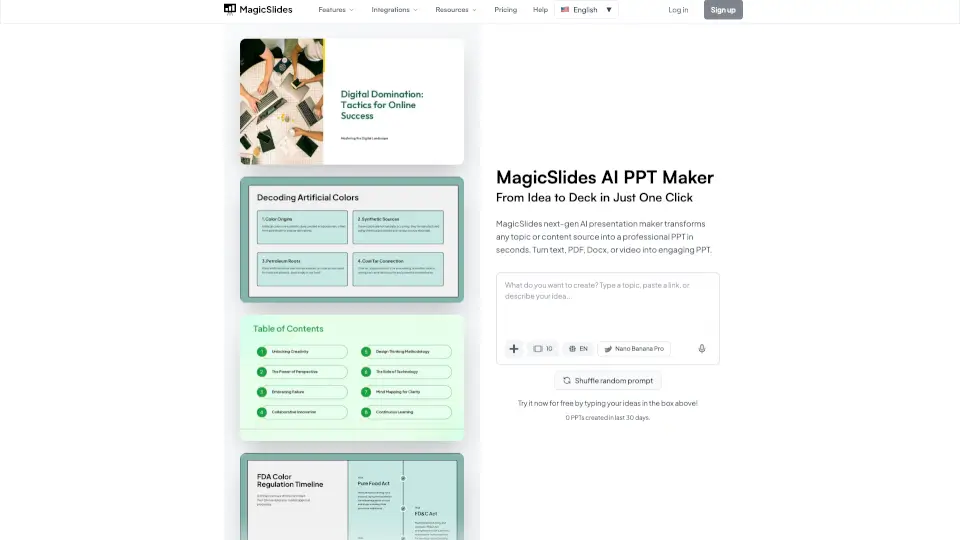
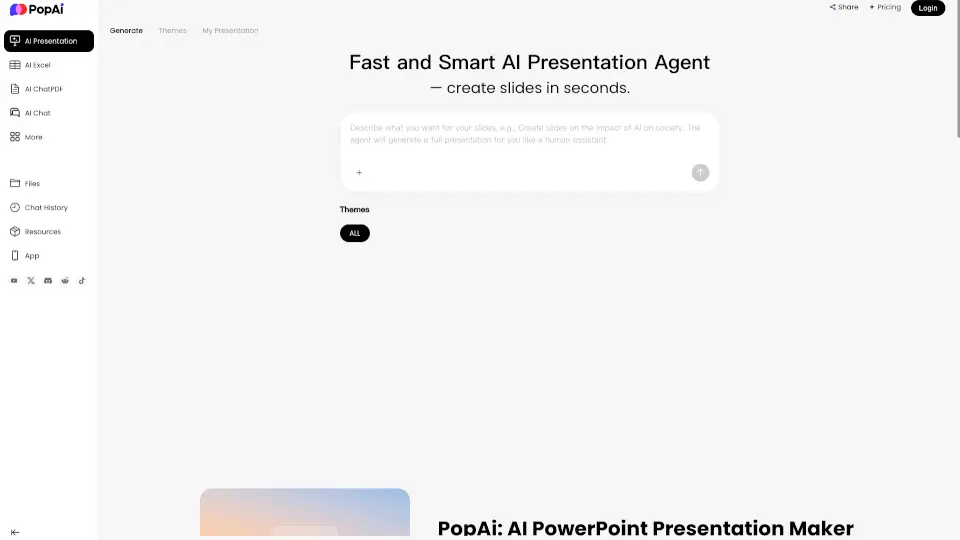
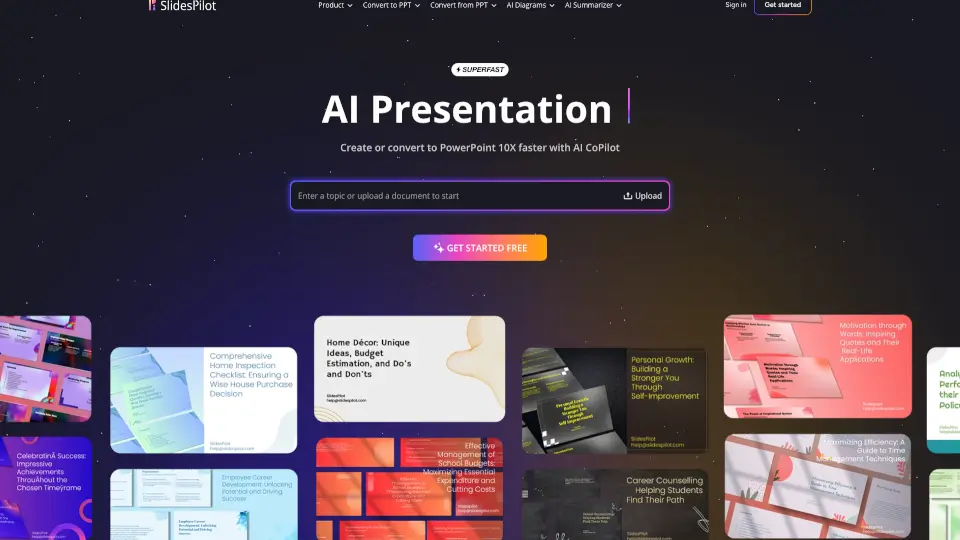
- Step 2: Choose your tool—AI Generate PPT, Beautify PPT, PDF to PPT, etc.—and enter your topic, upload a file, or paste a link.
- Step 3: Select slide count, language, and AI model (e.g., Claude Opus 4.7 or Haiku 4.5).
- Step 4: Preview the generated presentation in your browser and make edits on the fly.
- Step 5: Export your final presentation as a PPTX file for use in PowerPoint, Google Slides, or Keynote.