
What is Dropbox Sign?
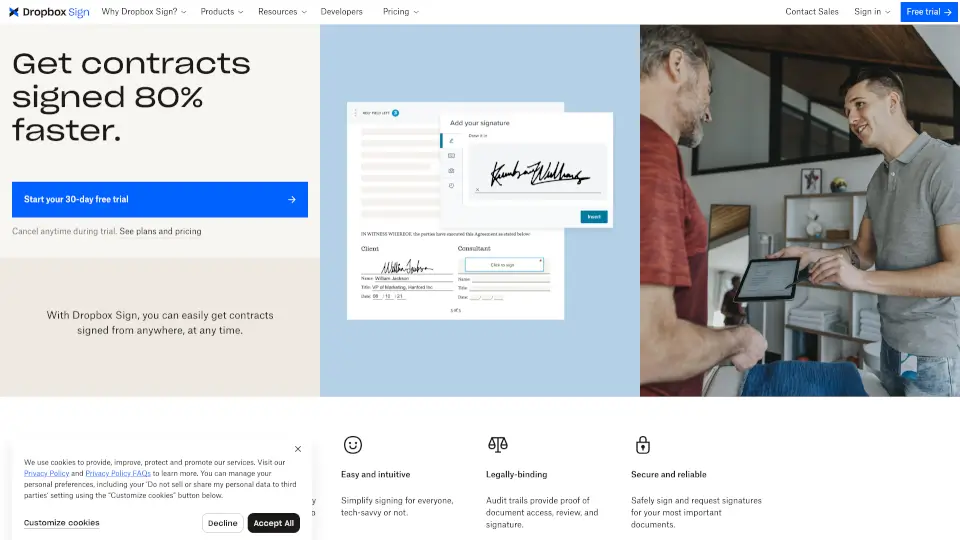
Dropbox Sign is an eSignature tool originally known as HelloSign, designed for businesses and teams that need to send, sign, and manage legally binding electronic agreements. The tool helps sales, HR, legal, and operations teams move documents from request to signature without requiring recipients to create an account. It integrates directly with Dropbox, Google Drive, Salesforce, OneDrive, and other everyday tools, making it a practical choice for teams that already use cloud storage and CRM platforms. Dropbox Sign is best suited for organizations that need a straightforward, secure way to handle contracts, NDAs, offer letters, and approvals without a steep learning curve.
What are the features of Dropbox Sign?
- Send and Sign Documents Online: Users upload a file from Dropbox or another connected app, add signers and signature fields, and send the request. Recipients can review and sign from any device without creating an account. Completed copies save automatically alongside the original.
- Prep for Signature with Custom Fields: Before sending, users can add signature fields, date fields, text fields, and a personalized message to guide recipients through the signing process. This reduces back-and-forth for sales contracts, NDAs, and offer letters.
- Automatic Save to Dropbox: Once all parties sign, the completed agreement is automatically saved back to the original Dropbox folder. This eliminates manual file organization and keeps the signed version linked to the draft.
- Integrations with Business Tools: Dropbox Sign connects with Dropbox, Google Drive, Salesforce, OneDrive, and other platforms. Teams can send signature requests directly from these apps without switching tabs or uploading files separately.
- Secure Audit Trails: Each agreement includes an audit trail that provides proof of document access, review, and signature. This helps meet legal and compliance requirements for legally binding signatures in the United States, European Union, United Kingdom, and many other countries.
- Bulk Send with Templates: Users can create reusable templates and send the same document to multiple signers at once. This is useful for HR teams sending offer letters or sales teams sending standard contracts.
What are the use cases of Dropbox Sign?
- Sales team sending contracts: A sales representative uploads a contract, adds signature fields, and sends it from Salesforce. The buyer signs on their phone without an account, and the signed copy saves back to the CRM. The sales cycle can go from two weeks to one day.
- HR sending offer letters: An HR manager creates a template for offer letters, fills in candidate details, and sends it for signature. The new hire signs electronically, and the completed document is stored in the employee's Dropbox folder.
- Startup onboarding loans: A fintech startup uses the Dropbox Sign API to embed signing into its loan application flow. Borrowers sign documents within the app, and the loan process can drop from two weeks to eight minutes.
- Real estate lease signing: A property manager sends a lease agreement to a tenant. The tenant signs on a mobile device while traveling, and the signed lease is automatically saved alongside the draft.
- Creative approval workflows: A marketing team sends a creative brief or design approval document to stakeholders. Reviewers add their signatures, and the team has a clear record of who approved what and when.
- Developer embedding eSignatures: A developer uses the Dropbox Sign API to integrate secure, branded signing directly into a website or app. The API can be implemented in hours rather than weeks, and signers do not need their own accounts.
How to use Dropbox Sign?
- Start a free trial: Go to the Dropbox Sign website and sign up for a 30-day free trial. You can cancel anytime during the trial period.
- Connect your storage: Link your Dropbox, Google Drive, or OneDrive account so you can access files directly from the signing interface.
- Upload a document: Choose a PDF, Word document, or other file you want to send for signature. You can also start from a template.
- Add signers and fields: Enter the email addresses of the people who need to sign. Drag and drop signature fields, date fields, and text fields onto the document where they are needed.
- Send the request: Add a personalized message and click send. Recipients will receive an email with a link to review and sign the document. No account is required on their end.
- Track and save: Monitor the status of your request in the dashboard. Once all parties sign, the completed copy is automatically saved back to your connected storage.