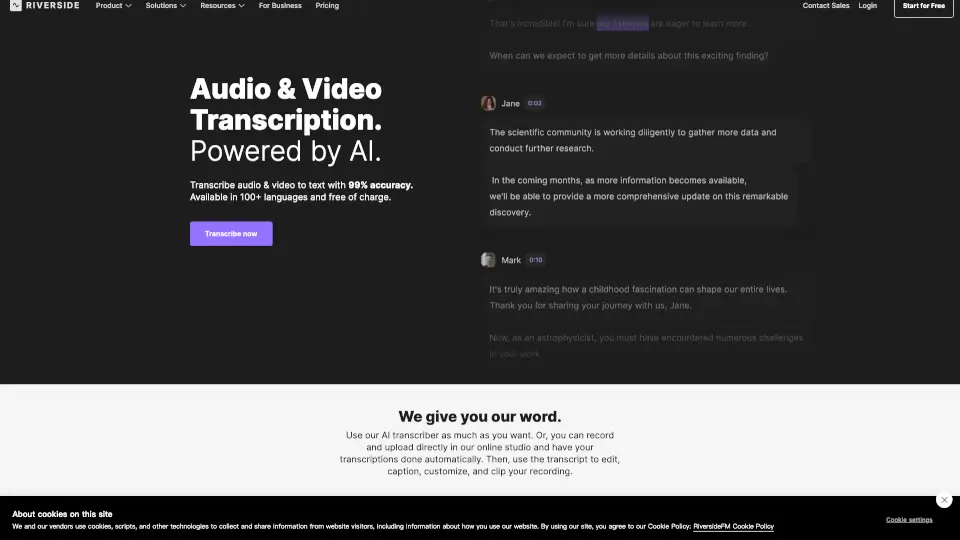
What is AI Transcription by Riverside?
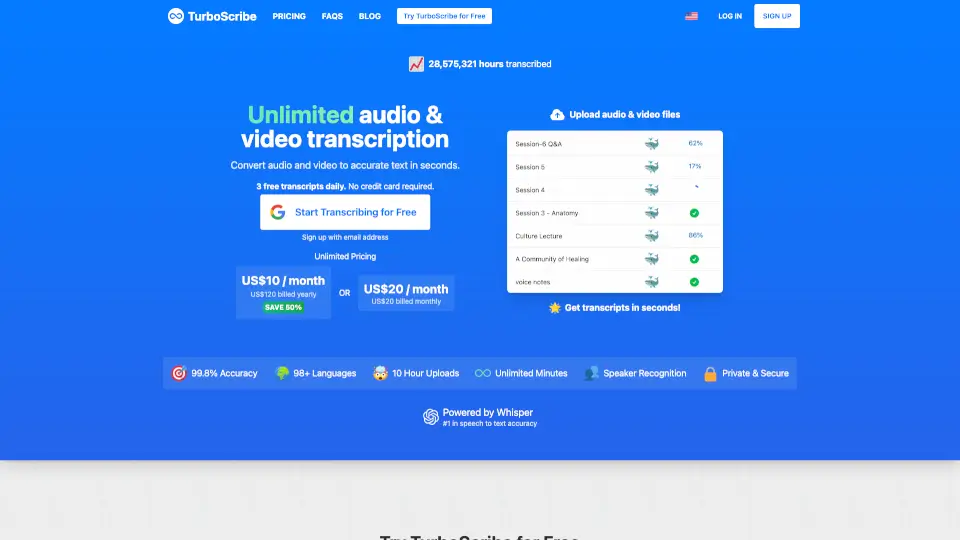
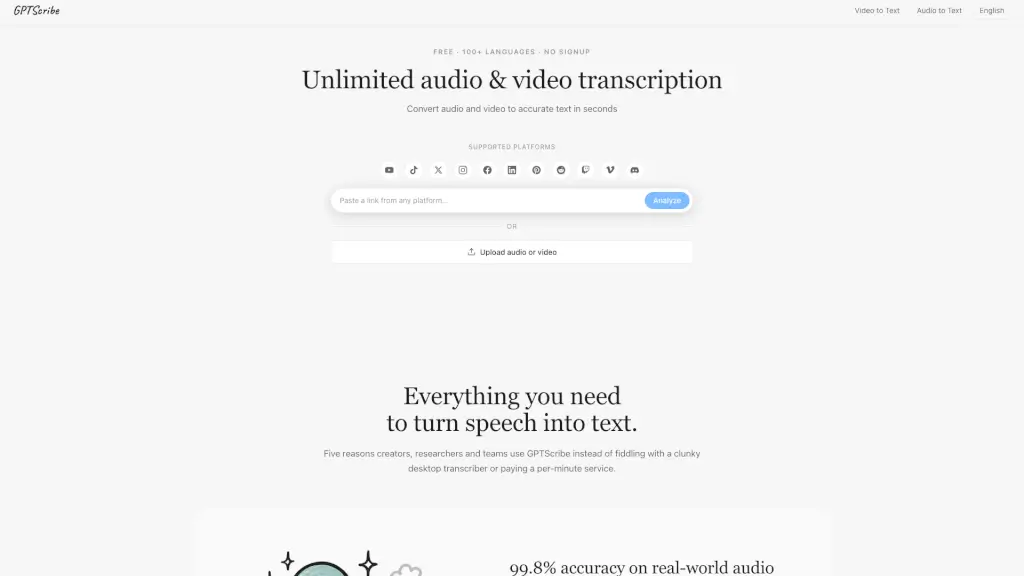
Need to turn your audio or video into text—fast, free, and accurate? Riverside’s AI-powered transcription tool does exactly that with 99% accuracy across 100+ languages, no sign-up required. Whether you’re uploading a podcast interview, webinar recording, or tutorial video, Riverside transcribes it word-for-word while handling accents, dialects, and even speaker changes like a pro.
Best of all, it’s completely free to use for unlimited transcriptions. Just drag in your file, pick your language, and get a polished transcript ready to download as TXT or SRT. Perfect for creators, marketers, educators, and teams who need reliable text from spoken content—without the hassle or cost.
What are the features of AI Transcription by Riverside?
- 99% Accurate AI Transcription: Uses advanced speech recognition trained on multilingual data to capture nuance, idioms, and regional accents.
- 100+ Language Support: Transcribe in languages ranging from English and Spanish to Hindi, Arabic, Japanese, and Swahili—with native-level precision.
- Free Unlimited Transcriptions: No paywall, no trial limits—transcribe as many files as you want at no cost.
- Multiple File Format Support: Accepts MP3, WAV, MP4, and MOV files for flexible uploading.
- Dual Download Options: Get transcripts as plain TXT (great for blogs or notes) or timestamped SRT files (ideal for subtitles).
- Automatic Speaker Detection (on paid plans): When recording in Riverside, each participant gets labeled separately in the transcript.
- Instant Processing: Transcription starts immediately after upload—usually ready in just minutes.
- In-Editor Transcript Editing: Fix errors directly in the transcript; edits sync automatically with your video timeline.
What are the use cases of AI Transcription by Riverside?
- Turning podcast episodes into searchable show notes or blog posts
- Adding accurate captions to YouTube or social media videos for accessibility
- Repurposing webinar content into email summaries or training materials
- Creating study guides or transcripts for online courses and tutorials
- Generating quotes or key insights from customer interviews or testimonials
- Preparing subtitles for multilingual audiences using SRT files
- Cleaning up internal meeting recordings for team documentation
How to use AI Transcription by Riverside?
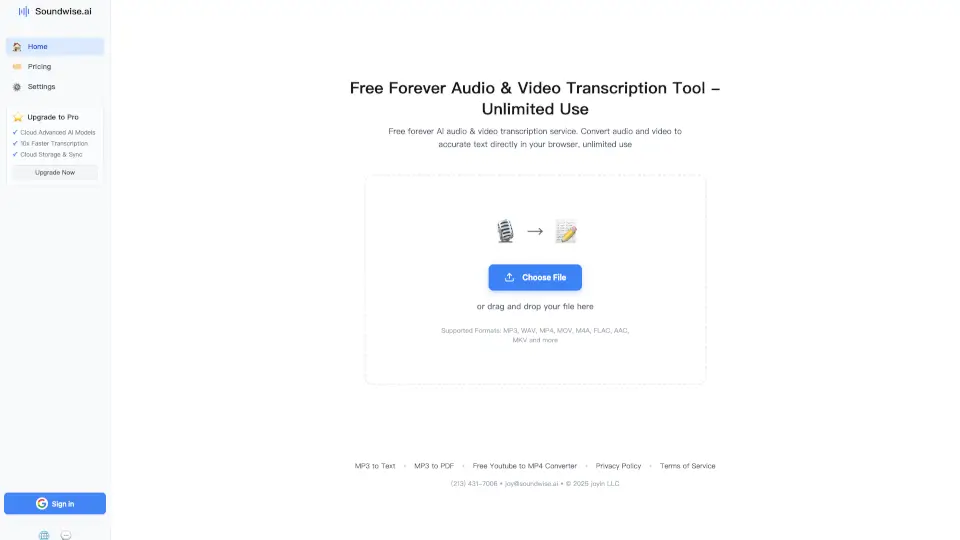
- Go to Riverside’s free transcription page and drag or upload your audio/video file (MP3, WAV, MP4, or MOV).
- Select your language from the dropdown menu to boost accuracy—especially important for non-English content.
- Choose your content type (e.g., podcast, interview, webinar) and intended use (captions, social post, etc.).
- Click “Start transcribing” and wait a few minutes while AI processes your file.
- Once ready, download your transcript as TXT or SRT—don’t forget to save it before starting a new file!
- For best speaker separation, record directly in Riverside’s studio so each person is on a separate audio track.